> For the complete documentation index, see [llms.txt](https://help.simnetonline.com/instructor-experience/llms.txt). Markdown versions of documentation pages are available by appending `.md` to page URLs; this page is available as [Markdown](https://help.simnetonline.com/instructor-experience/creating-and-managing-courses/courses-list.md).
# Courses List
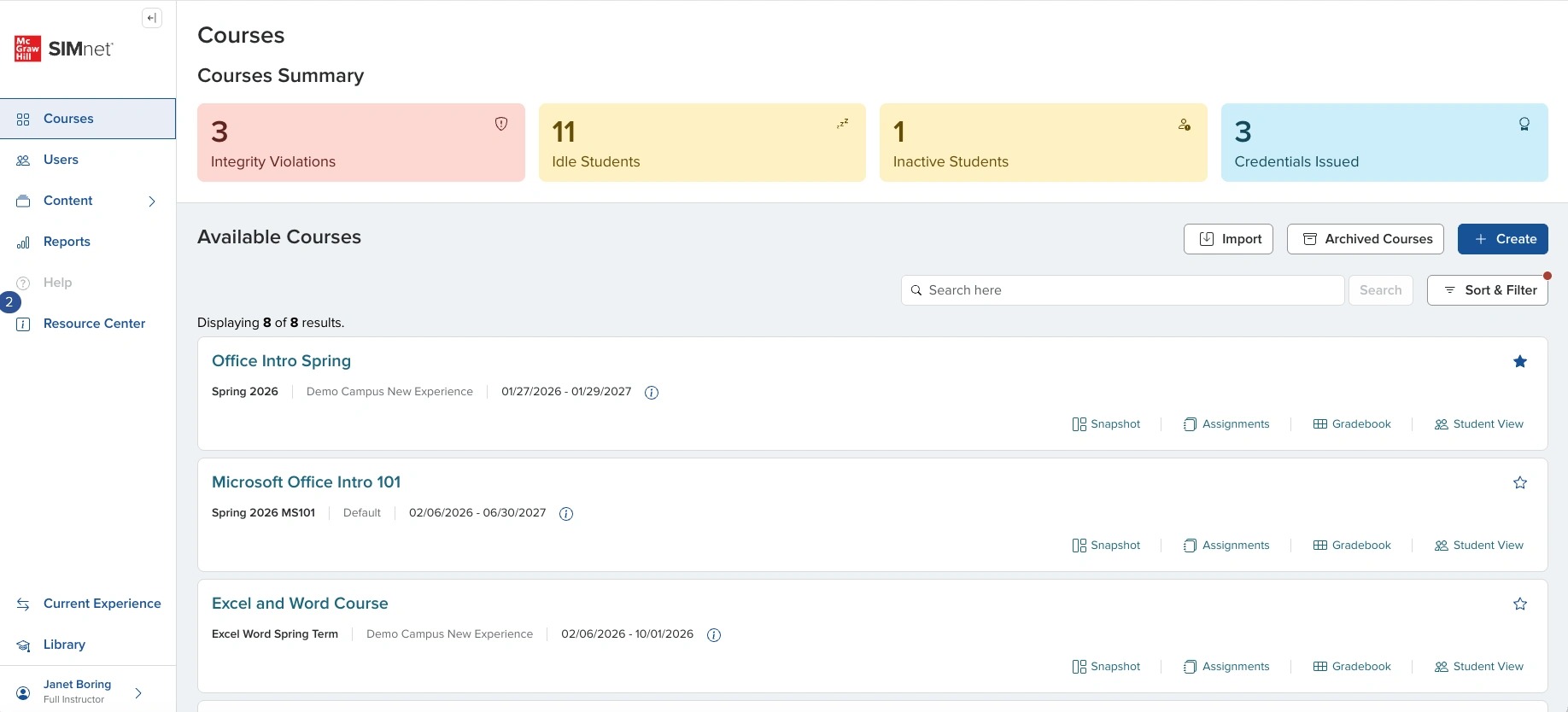
Learn how to navigate the Courses list where you can view information across all of your courses, access create and import courses, as well as the full list of your courses.
### Courses List
The Courses list is the dashboard of the new experience. There is a lot of information here at your fingertips, as well as actions that you can take related to courses.
It can always be accessed through the left navigation no matter where you are.
### My Courses/All Courses
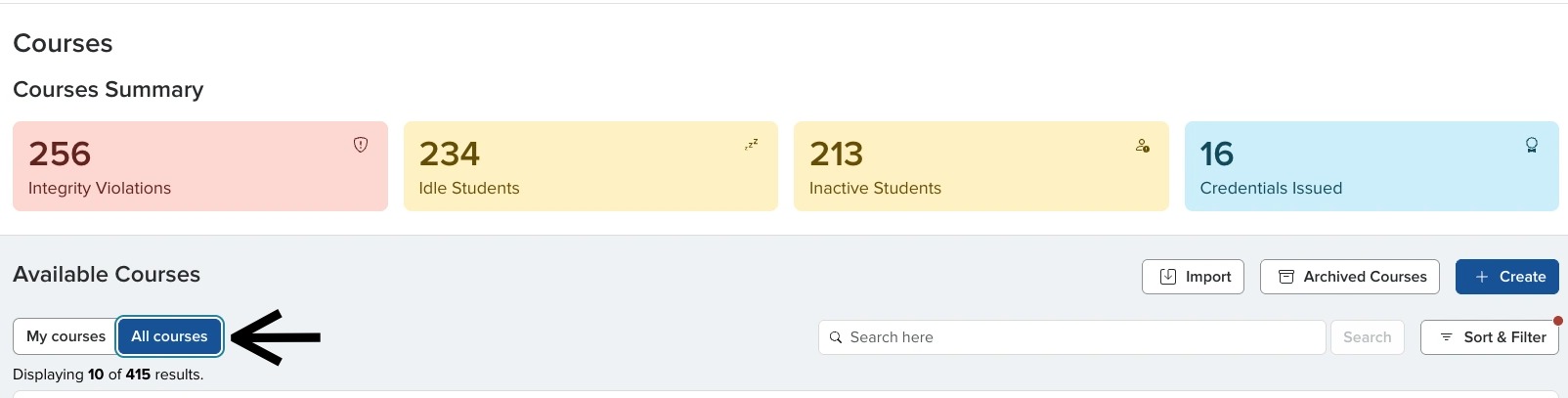
If you are an administrator, you will see a toggle for My courses and All courses.
My courses are the courses you are also an instructor in.
All courses will include every active course in the account.
Switching the toggle will change the Courses Summary numbers as well as the list of courses.
### Courses Summary
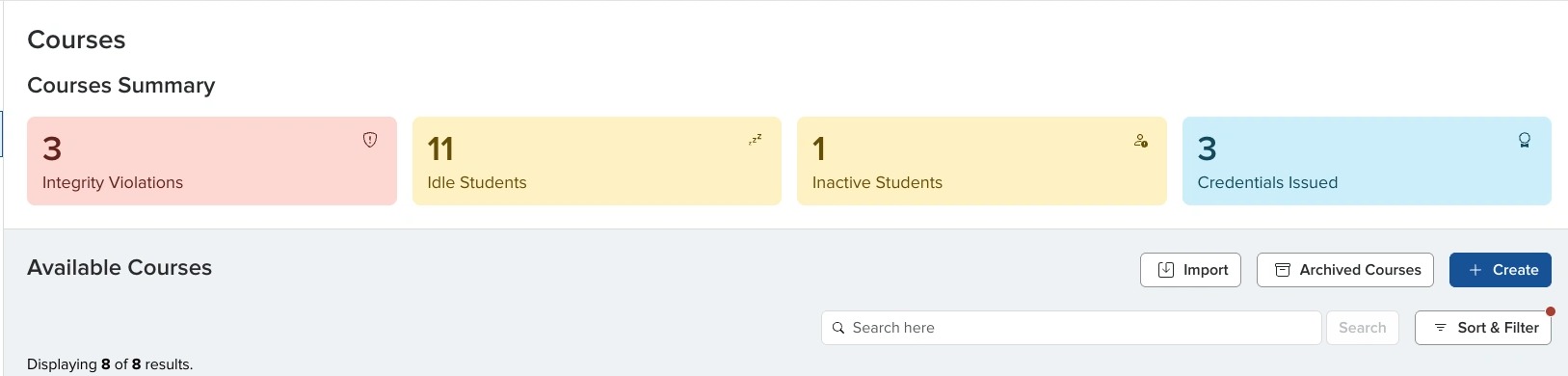
As an instructor, this shows you valuable information across all of your courses related to:
* Integrity Violations
* Idle students who haven't logged in for a week
* Inactive students who haven't logged in for two weeks or more
* Credentials issued to your students
### Integrity Violations
When you click on one of the widgets in the courses summary area, it will take you to the report behind that information.
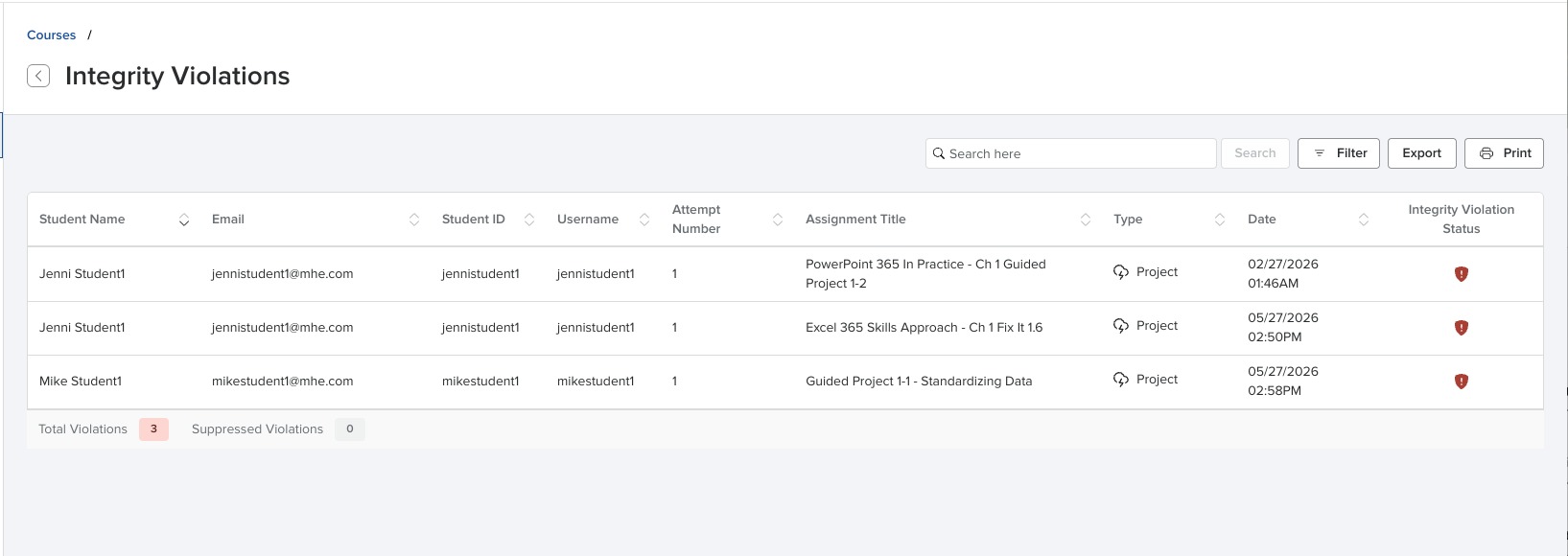
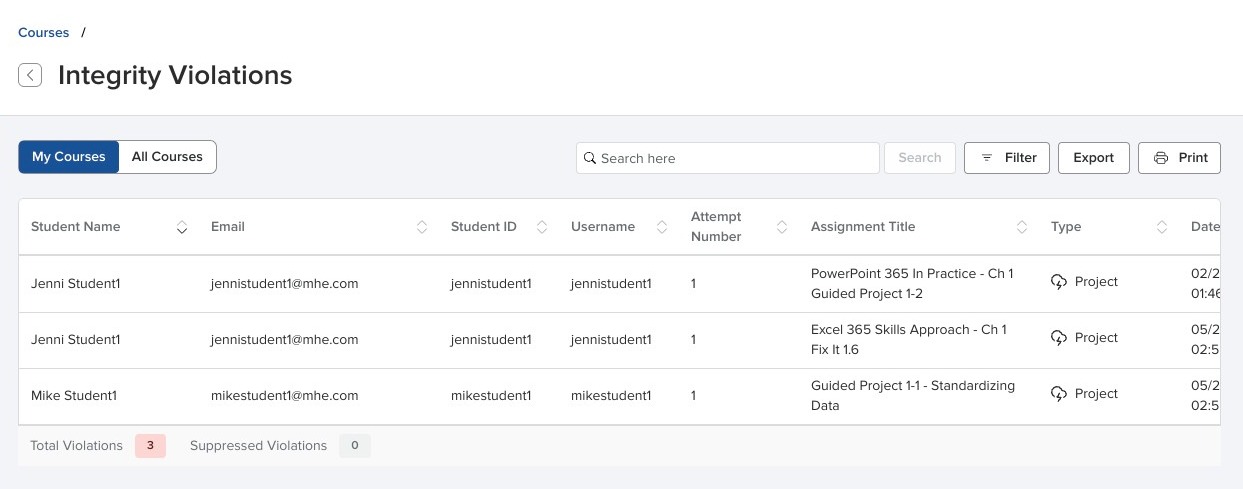
The Integrity Violations Report lists any issues with violations for the students in your courses. You can click on the icon to view the details of the violation.
There are totals at the bottom of the report, and you are able to search, filter, export, and print the report.
Simply click the arrow to the left of the title to return to the Courses list.
{% hint style="info" %}
**Learn more:** Linked Reports
{% endhint %}
Again, as an administrator, you have the my courses/all courses toggle for the reports as well.
### Idle Students
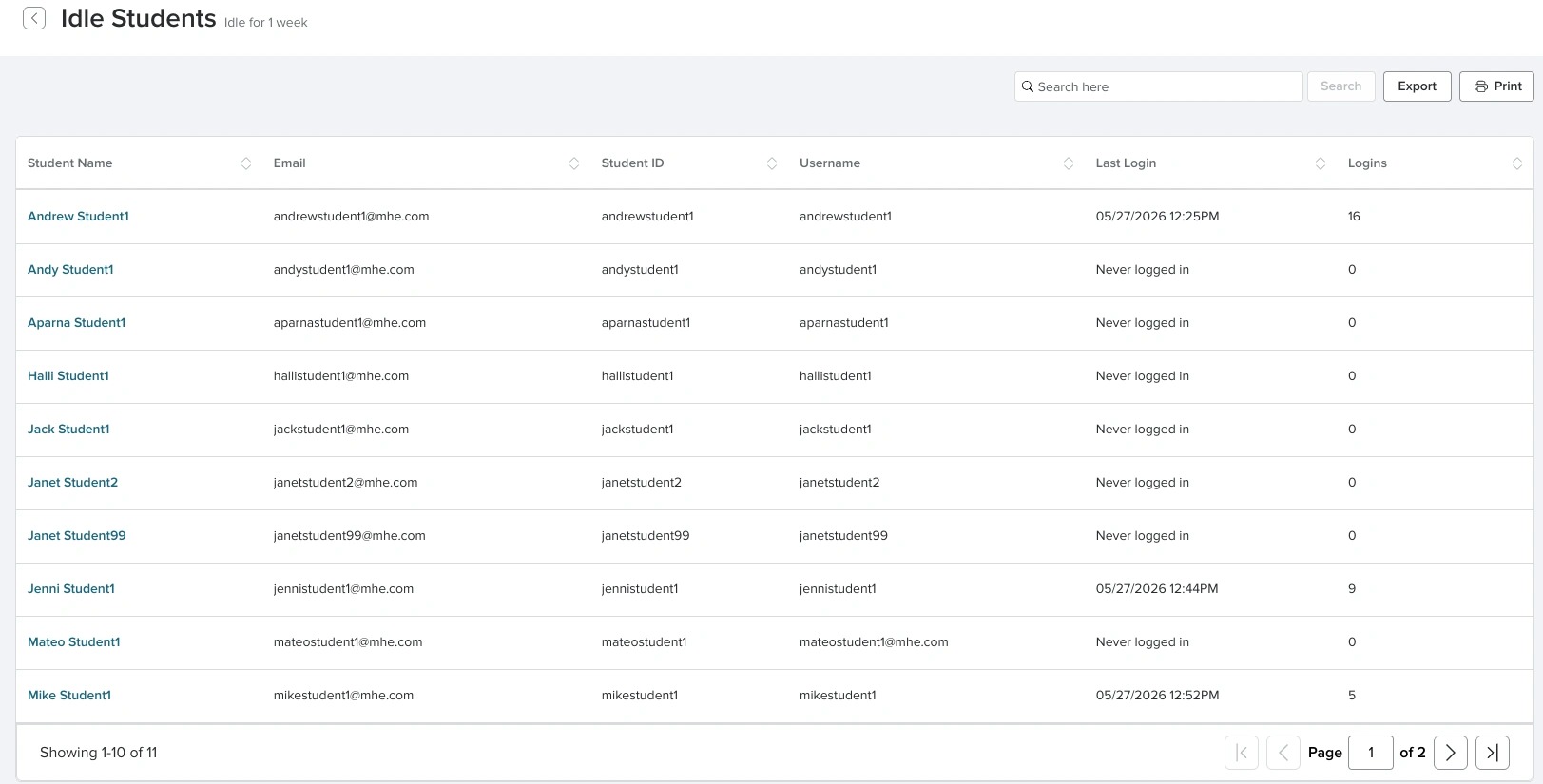
Idle Students are students who have not had activity for one week. You can click on the student's name to view their snapshot.
This may be of interest, especially if you run shorter terms. It can be an early warning system to contact that student.
### Inactive Students
Inactive students have been inactive in the course for two or more weeks. You can click on the student's name to view their snapshot.
These are likely students you want to reach out to and check in with regarding their progress in the course.
### Credentials
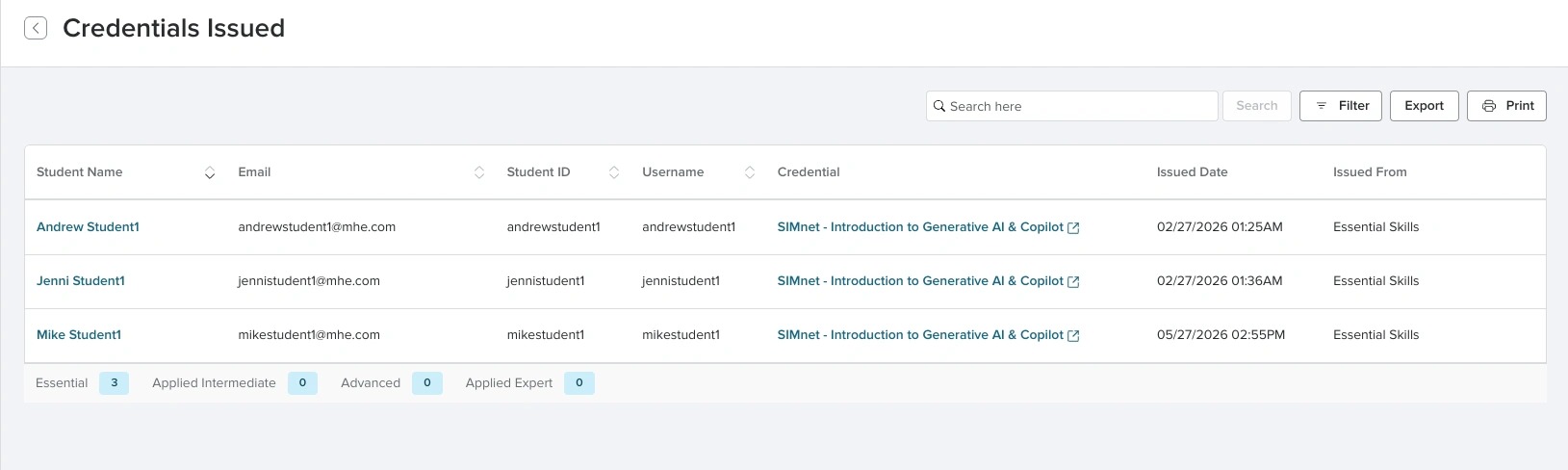
The credentials report is a great way to keep track of students earning credentials from SIMnet. You can click the credential name to view the details.
The roll-up numbers at the bottom give you a quick glance of which types of credentials students have earned.
{% hint style="info" %}
**Learn more:** [Digital Credentials](/instructor-experience/getting-started/digital-credentials.md)
{% endhint %}
### Available Actions
From the Courses list, you can also create courses, view archived courses, and import courses and sections.
{% hint style="info" %}
**Learn more:** [Create Course](/instructor-experience/creating-and-managing-courses/courses-list/create-course.md), Import Courses and Sections, and [Archived Courses](/instructor-experience/creating-and-managing-courses/courses-list/archived-courses.md)
{% endhint %}
### Search, Sort, and Filter
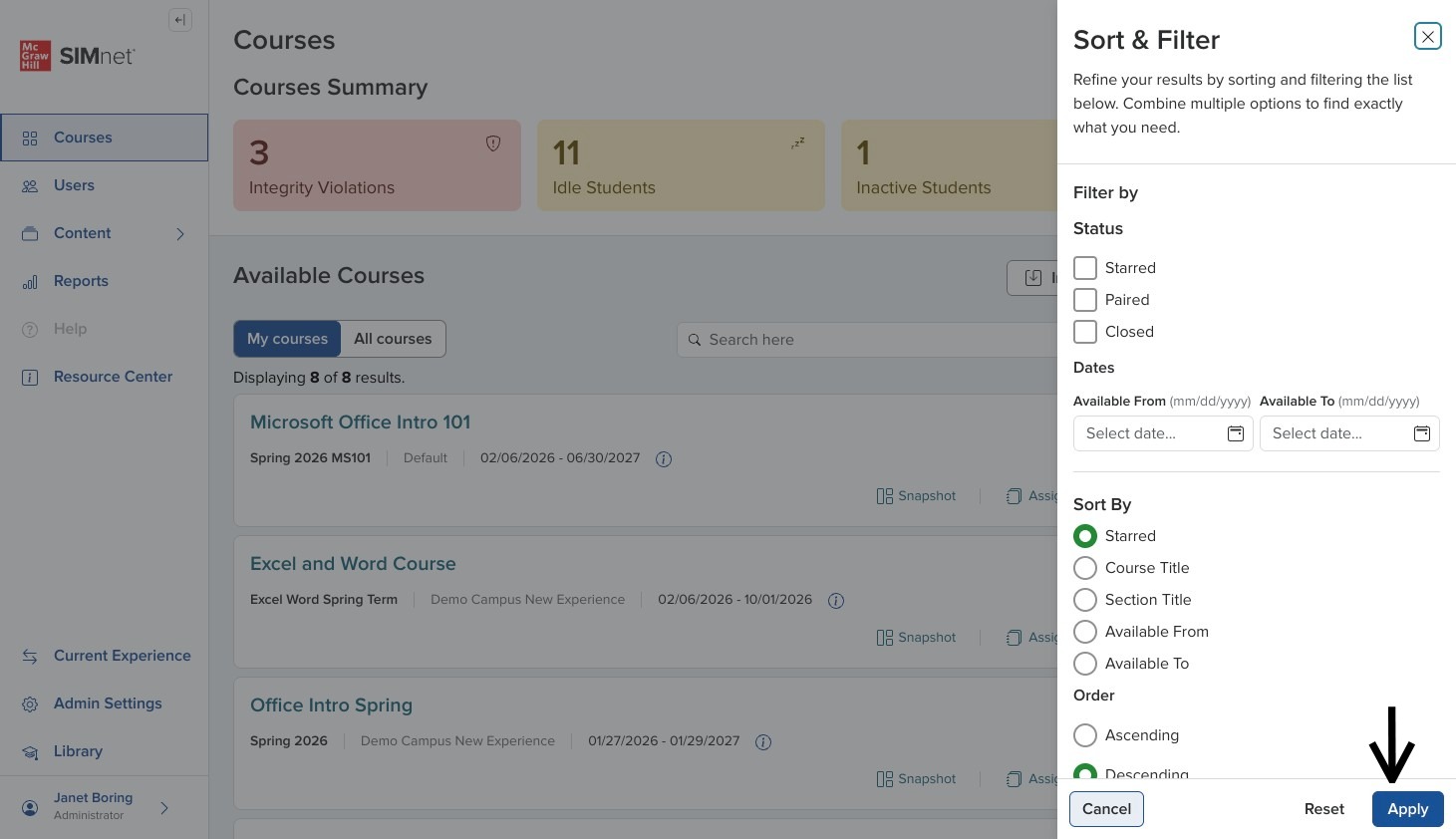
You can Search for a course by title and use different Sort & Filter options to narrow the list.
Be sure to click Apply in the lower-right corner to change your view.
### Course Card
On each course card, you have the course name, section name, campus, and dates.
There are also quick links to the Snapshot, Assignments, Gradebook, and Student View for the course.
The star allows you to favorite that course and bubble it up to the top of your list.
### Viewing a Course
Clicking on the course title or Snapshot takes you to that course's snapshot page.
The quick links for Assignments and Gradebook take you directly to that tab.
{% hint style="info" %}
**Learn more:** [Course Snapshot](/instructor-experience/creating-and-managing-courses/course-snapshot.md), Course Assignments, and Course Gradebook
{% endhint %}
---
# Agent Instructions
This documentation is published with GitBook. GitBook is the documentation platform designed so that both humans and AI agents can read, navigate, and reason over technical content effectively. Learn more at gitbook.com.
## Querying This Documentation
If you need additional information that is not directly available in this page, you can query the documentation by asking a question.
Perform an HTTP GET request on the following URL with the `ask` and `goal` query parameters:
```
GET https://help.simnetonline.com/instructor-experience/creating-and-managing-courses/courses-list.md?ask=&goal=
```
`ask` is the immediate question: it should be specific, self-contained, and written in natural language.
`goal` is what the user is ultimately trying to achieve, the reason they need the answer. Sharing it helps GitBook give you a better, more relevant answer. A goal is most helpful when it describes the outcome the user wants rather than restating the question. For example, with `ask=how do I create an API token`, a goal like `automate deployments from our CI pipeline` lets GitBook tailor the answer to that use case.
The response will contain a direct answer to the question and relevant excerpts and sources from the documentation.
Use this mechanism when the answer is not explicitly present in the current page, you need clarification or additional context, or you want to retrieve related documentation sections.