> For the complete documentation index, see [llms.txt](https://help.simnetonline.com/instructor-experience/llms.txt). Markdown versions of documentation pages are available by appending `.md` to page URLs; this page is available as [Markdown](https://help.simnetonline.com/instructor-experience/creating-and-managing-courses/course-snapshot/course-header-and-actions.md).

# Course Header & Actions

Learn about the course header and the actions available to you from inside your course.

## Course Header

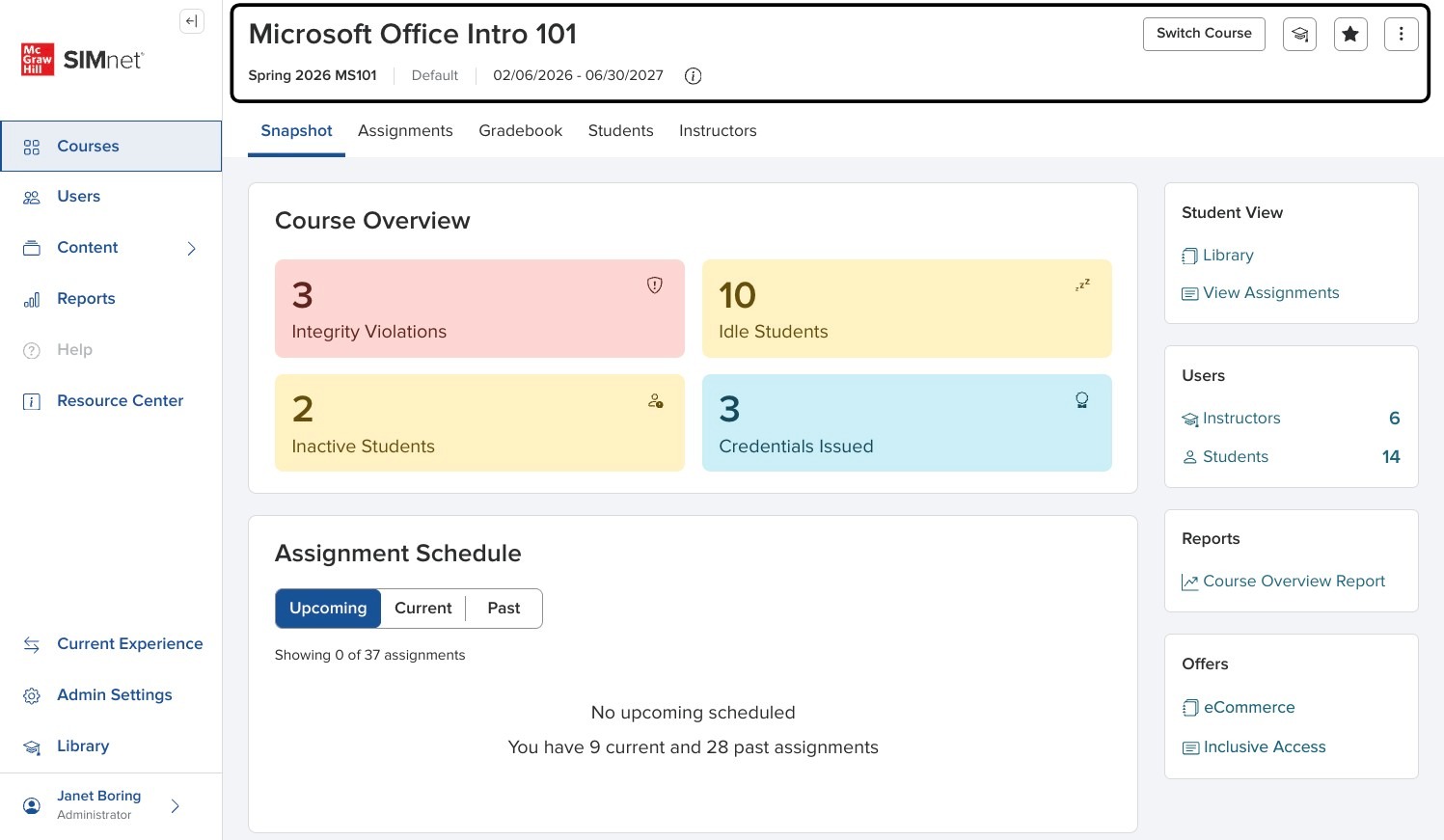
In the header for a course you will see the Course Name, Section, Campus, and Available Dates. To the right you will see icons for Switch Course, Student View, Favorite/Unfavorite, as well as an actions (3 dots) menu.

These options are part of the header and are available no matter which tab you are on in the course.

<div data-with-frame="true"><figure><img src="https://colony-recorder.s3.amazonaws.com/files/2026-06-25/6e6d1b62-ab41-4549-b772-f62598f9cc8b/user_cropped_screenshot_131a0b0dd93845ea97ab73a5a5ee3383_text_export.jpeg" alt="Screenshot of the course header showing the course name, section, campus, available dates, and header action icons"><figcaption></figcaption></figure></div>

### Switch Course

Clicking on Switch Course allows you to conveniently and easily switch to a different course.

<div data-with-frame="true"><figure><img src="https://colony-recorder.s3.amazonaws.com/files/2026-06-25/5ec4dddc-e120-4ea9-98e7-11a2acfed717/user_cropped_screenshot_7e85e4d1afb146349dade37d70af3d65_text_export.jpeg" alt="Screenshot of the Switch Course icon in the course header toolbar"><figcaption></figcaption></figure></div>

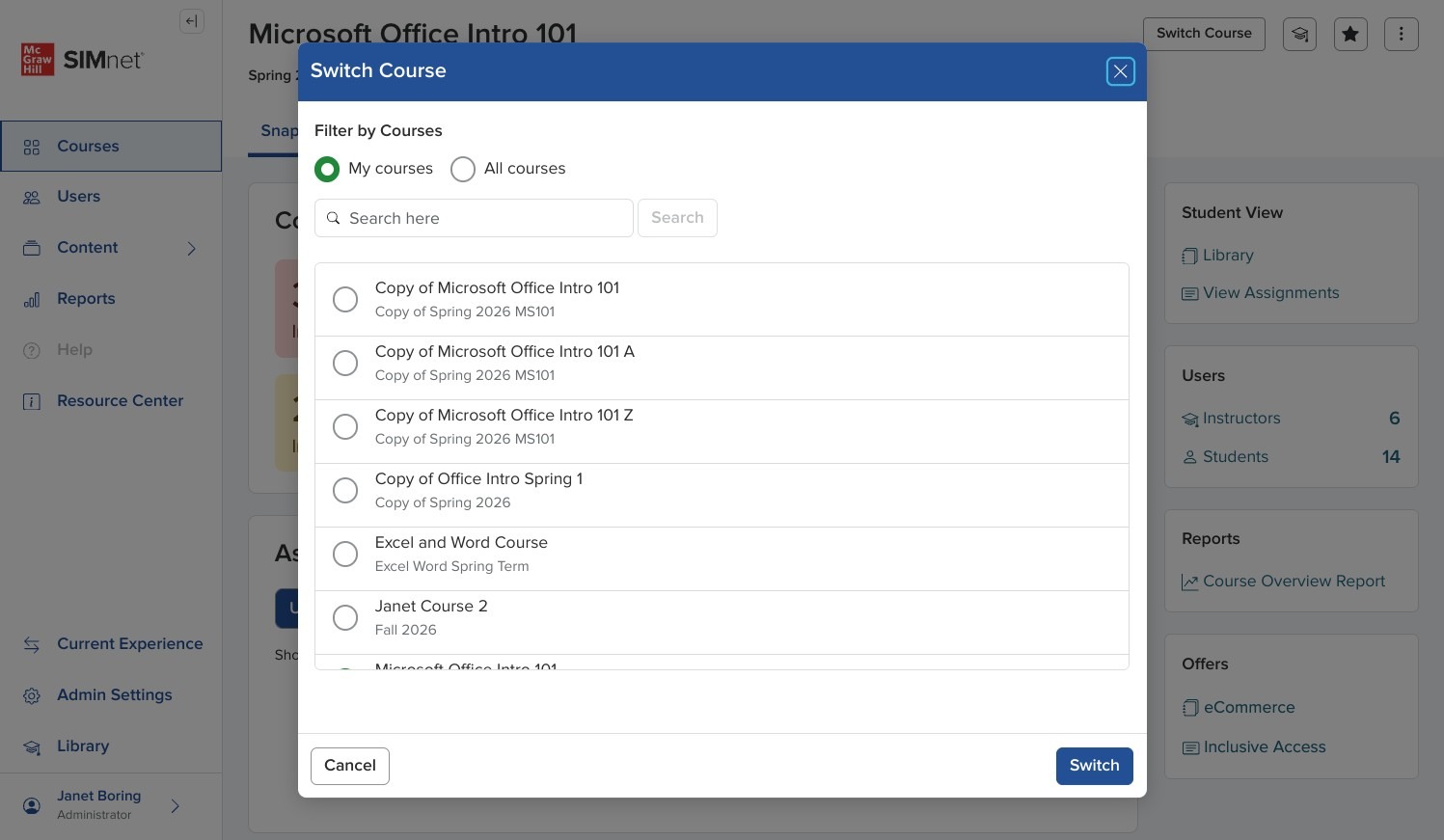
In the pop - up window you will select the course you want to view.

If you're an admin, you will have the option to filter by My courses or All courses.

You can search for a specific course by name or browse the list to select the course that you would like to switch to.

<div data-with-frame="true"><figure><img src="https://colony-recorder.s3.amazonaws.com/files/2026-06-25/19ea5b60-f9b1-455f-8e66-3ef6adc53a53/ascreenshot_53fa8af5c9bd420691bdb83709e7e196_text_export.jpeg" alt="Switch course modal with available courses"><figcaption></figcaption></figure></div>

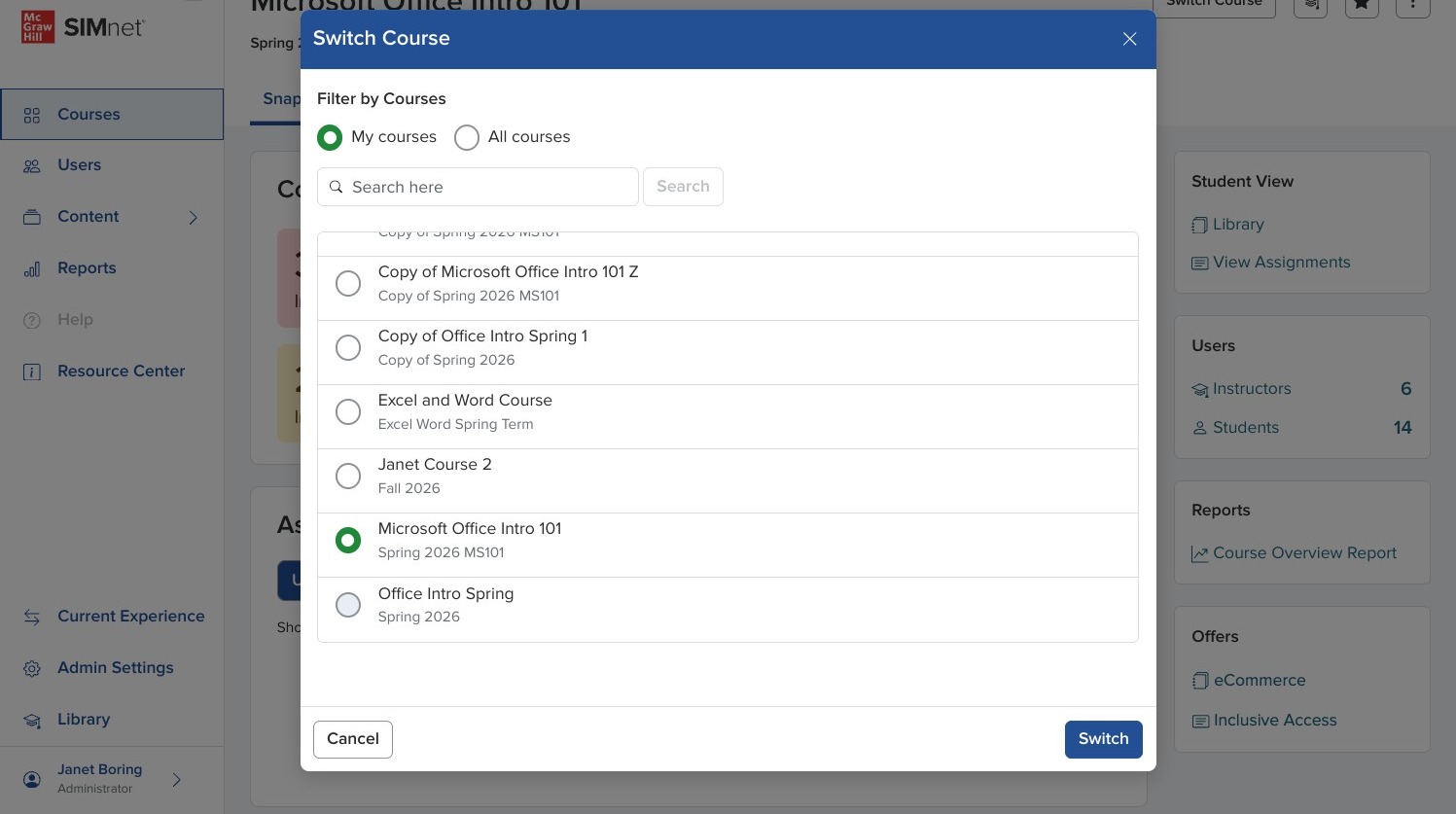
Select the course and click Switch in the lower right corner of the window.

<div data-with-frame="true"><figure><img src="https://colony-recorder.s3.amazonaws.com/files/2026-06-25/96e944e4-d30d-46dc-8aa0-96ad4ccc473a/ascreenshot_239d90b8ea244ae4ac3abe5b3d5b4d00_text_export.jpeg" alt="Screenshot of the Switch Course dialog with a course selected and the Switch button highlighted in the lower right"><figcaption></figcaption></figure></div>

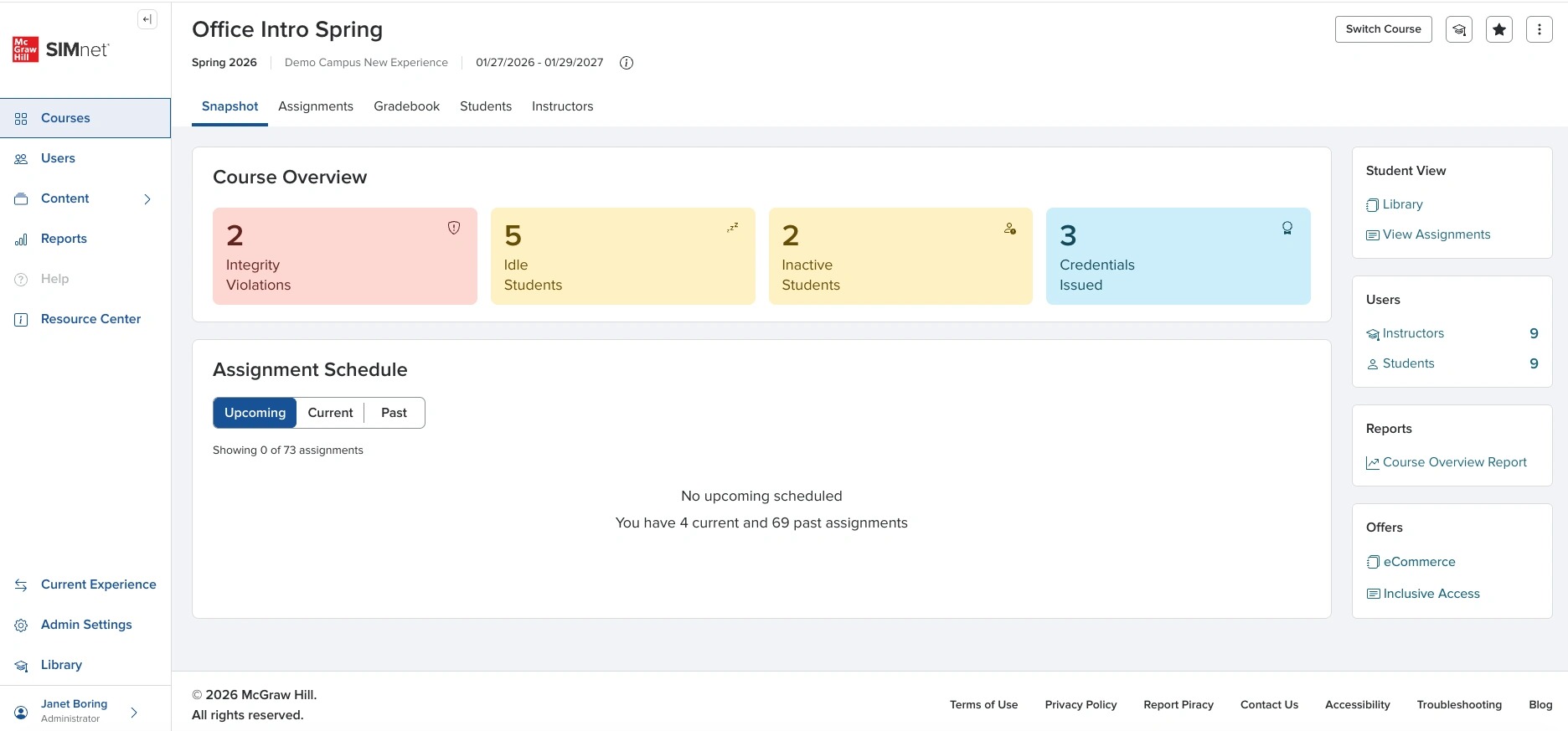
You will be taken to the selected course and the tab you were on in the previous course.

<div data-with-frame="true"><figure><img src="https://colony-recorder.s3.amazonaws.com/files/2026-06-25/fa6e0541-a8f8-41f1-9a24-598d071996bf/screenshot_d16306b35ec04c6aa9cbc6f90fc04327_text_export.jpeg" alt="Screenshot of the destination course page after switching from the previous course"><figcaption></figcaption></figure></div>

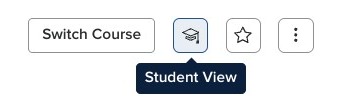
### Student View

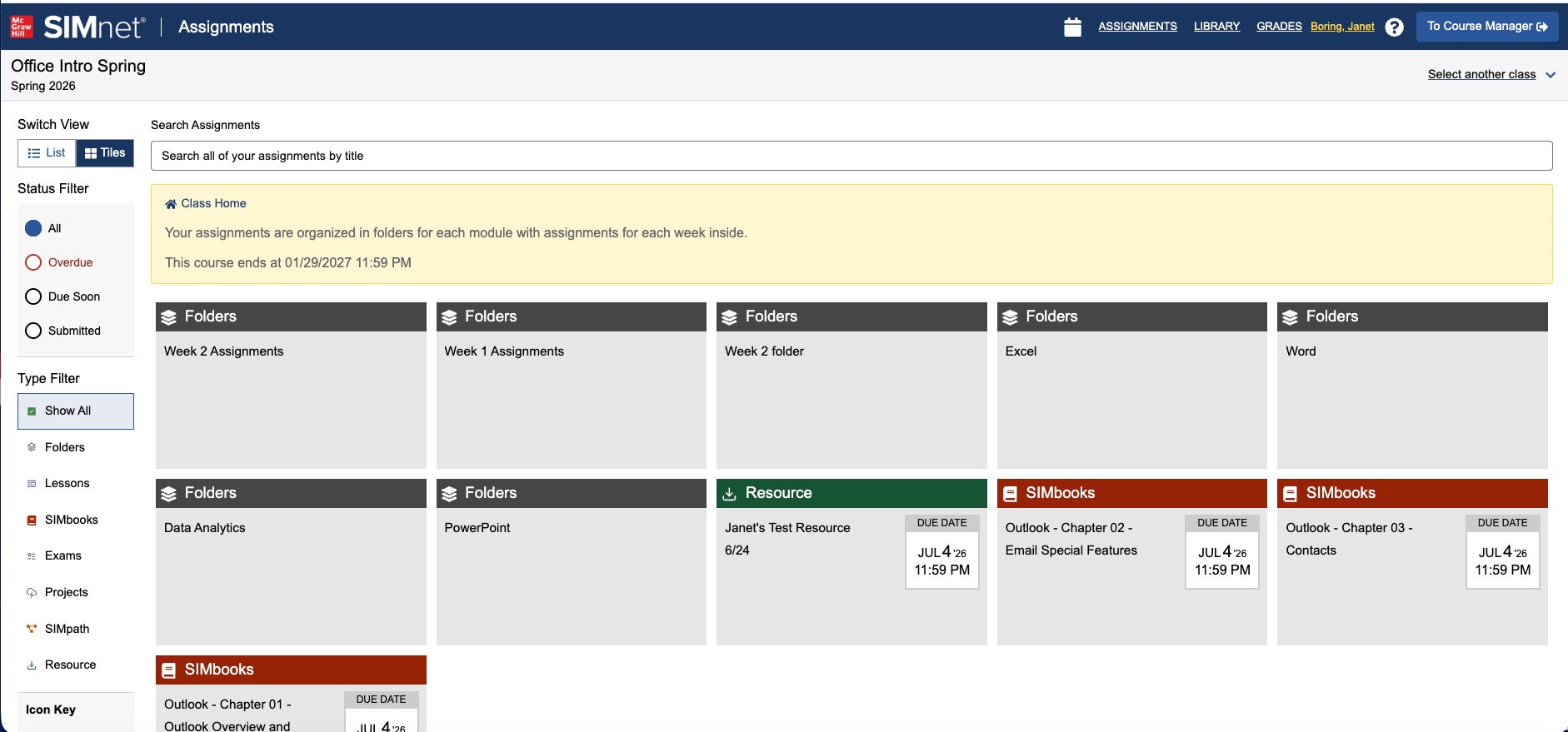
Clicking on the Student View icon will take you to the student assignment view.

<div align="left" data-with-frame="true"><figure><img src="https://colony-recorder.s3.amazonaws.com/files/2026-06-25/2d01d968-3249-44a3-b3c6-0b9b401fe2ea/user_cropped_screenshot_d8ca98dcfbac46c88ad3ab5b5721c784_text_export.jpeg" alt="Screenshot of the Student View icon in the course header toolbar"><figcaption></figcaption></figure></div>

This allows you to view and complete any assignment from a student perspective.

<div data-with-frame="true"><figure><img src="https://colony-recorder.s3.amazonaws.com/files/2026-06-25/f45caa9a-e8b0-49f6-9638-8b1c9fba01b0/screenshot_93b43affb09b49039dcc2593ee37ecd7_text_export.jpeg" alt="Screenshot of the student assignment view for the selected course"><figcaption></figcaption></figure></div>

### Favorite/Unfavorite

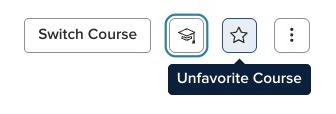
Clicking on the star allows you the favorite or unfavorite your course.

<div align="left" data-with-frame="true"><figure><img src="https://colony-recorder.s3.amazonaws.com/files/2026-06-25/4511b280-23e5-4b9a-ab4a-673fd8cf22d7/user_cropped_screenshot_df04f36899bb41bd92b9b4d28f8f7921_text_export.jpeg" alt="Screenshot of the Favorite star icon in the course header"><figcaption></figcaption></figure></div>

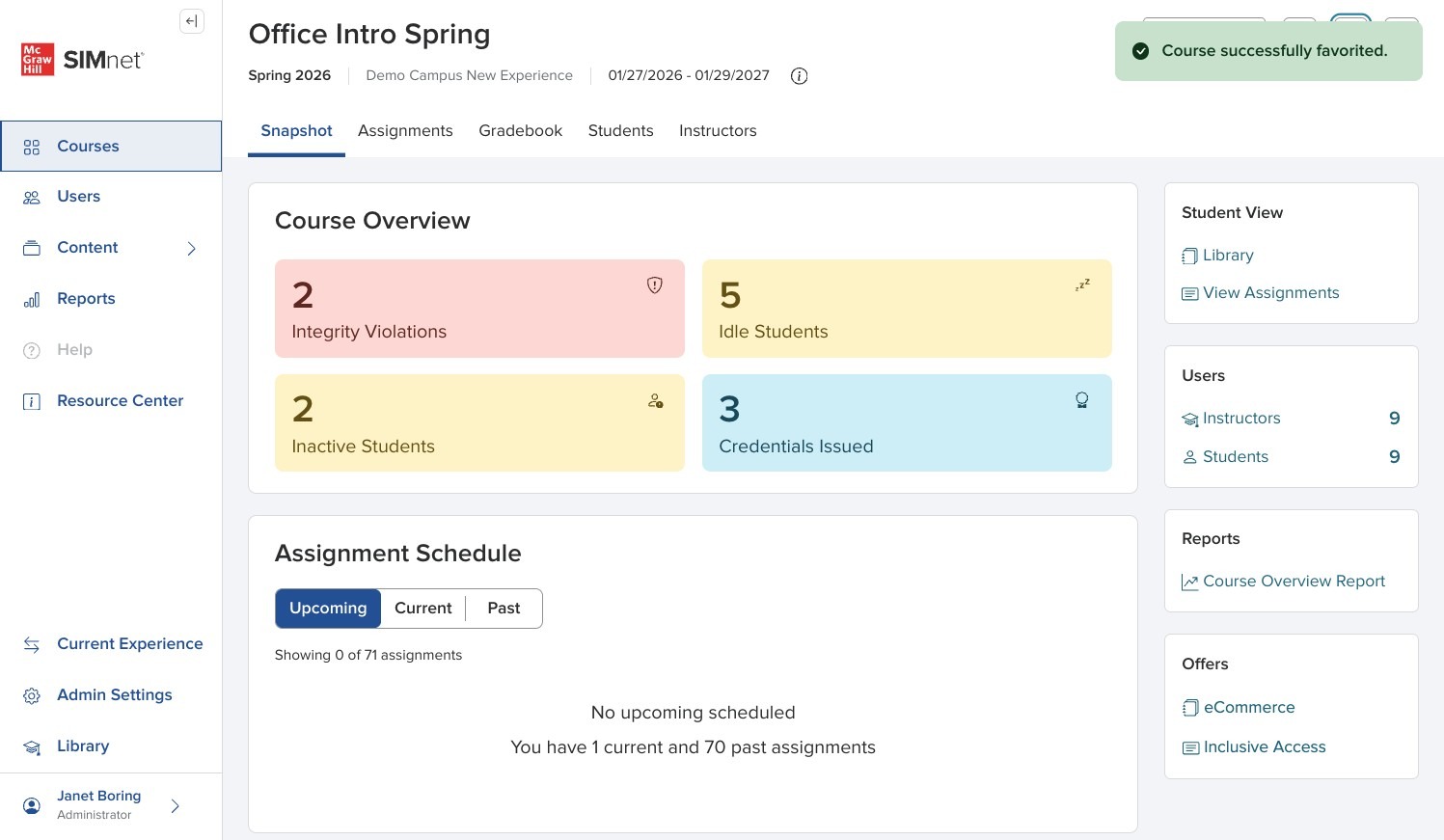
You'll receive confirmation that the action was successful. If you star a course, it appears at the top of your list in the main Courses List.

<div data-with-frame="true"><figure><img src="https://colony-recorder.s3.amazonaws.com/files/2026-06-25/df069c91-cd1e-46cd-80a0-260686afda99/ascreenshot_7c98995cea80441688d7c8084eb79853_text_export.jpeg" alt="Screenshot of the confirmation message shown after marking a course as a favorite"><figcaption></figcaption></figure></div>

### More Actions

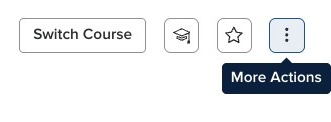
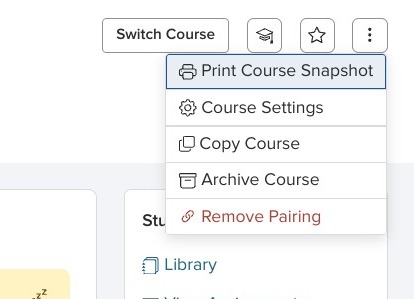
Clicking on the More Actions menu (3 dots) will show you additional actions you can take related to the specific course that you're in.

These vary depending on your role in SIMnet.

<div align="left" data-with-frame="true"><figure><img src="https://colony-recorder.s3.amazonaws.com/files/2026-06-25/79be09a0-d6c2-44b9-88ad-d44c141d5dfd/user_cropped_screenshot_3484efff1a774331b3d59adf24fcda23_text_export.jpeg" alt="Screenshot of the More Actions menu opened from the three-dot button in the course header"><figcaption></figcaption></figure></div>

### Print Course Snapshot

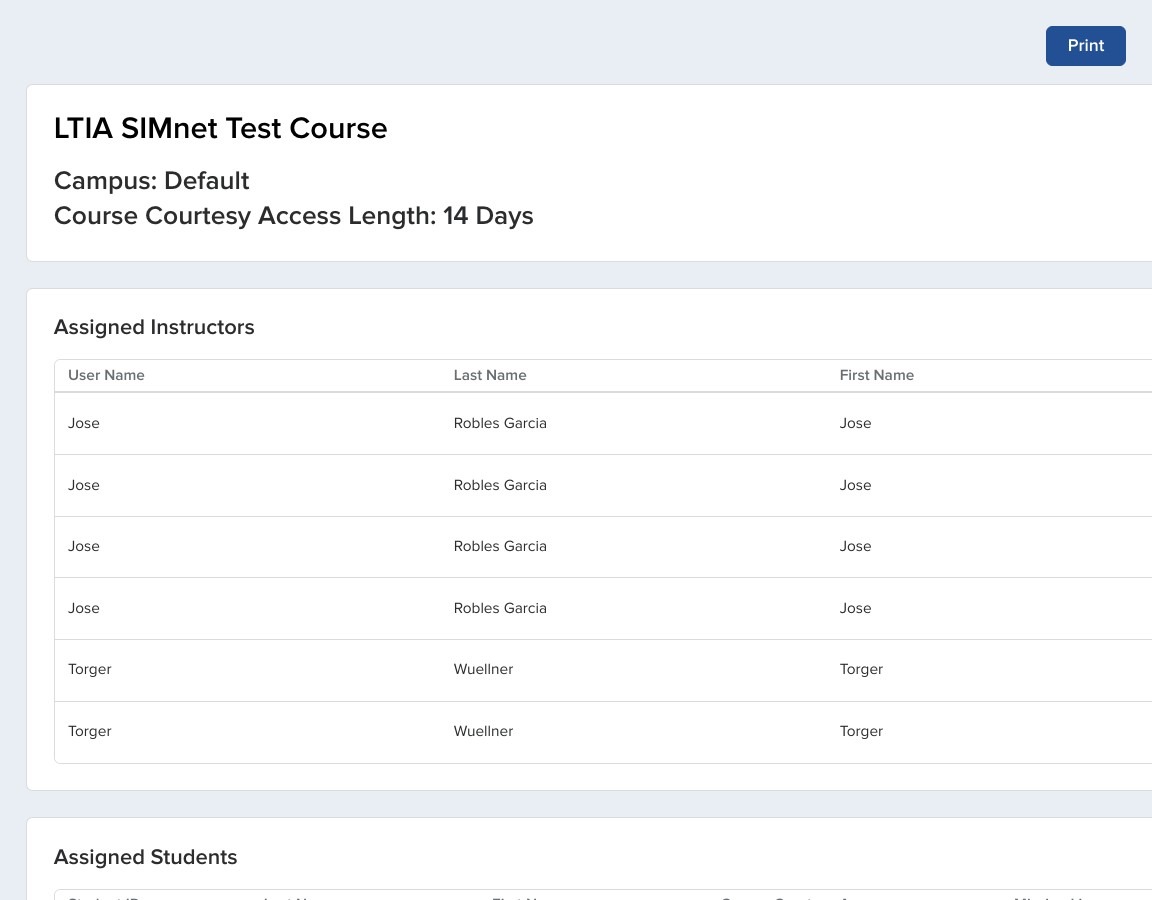
Print Course Snapshot will pull up a print screen with the assigned instructors, students, and assignments for a course, as well as any credentials earned.

<div align="left" data-with-frame="true"><figure><img src="https://colony-recorder.s3.amazonaws.com/files/2026-06-25/a24ed78d-2080-4c6f-8470-22abbb9a1a2d/user_cropped_screenshot_d795f57155a142ad9760e1de856e06a3_text_export.jpeg" alt="Screenshot of the Print Course Snapshot option selected in the dropdown"><figcaption></figcaption></figure></div>

Click Print to print out the snapshot.

<div data-with-frame="true"><figure><img src="https://colony-recorder.s3.amazonaws.com/files/2026-06-25/c357c8fe-f0ce-4334-a673-112e7660edcb/ascreenshot_096eac628a5c47a4a1bd5a9bdb75c178_text_export.jpeg" alt="Screenshot of the print preview window with the Print button available for the Course Snapshot"><figcaption></figcaption></figure></div>

### Course Settings

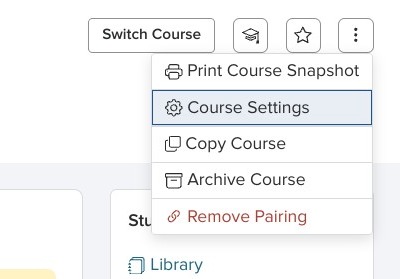
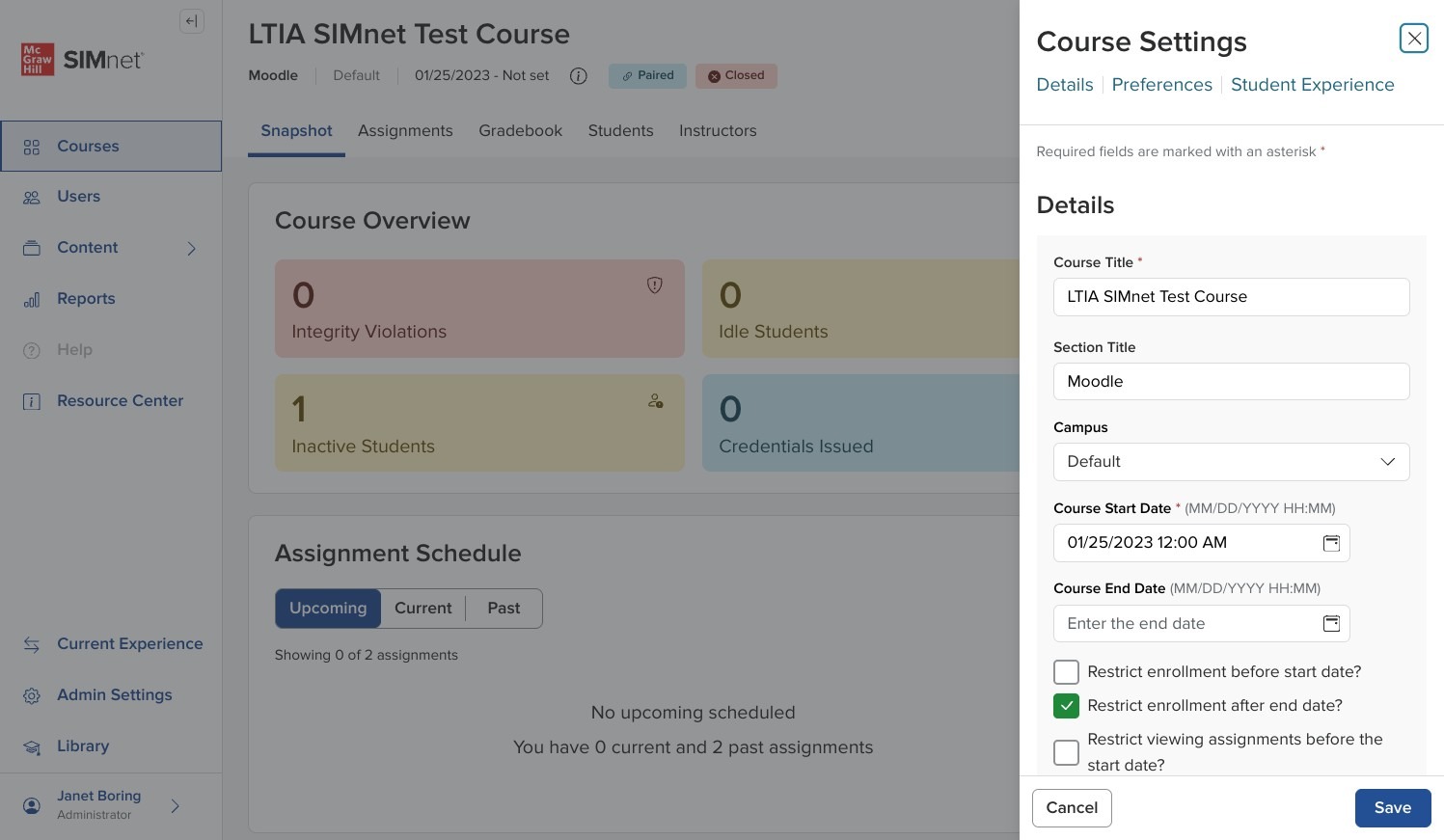
Clicking on Course Settings will open up the side panel to allow you to edit the settings for that specific course.

<div align="left" data-with-frame="true"><figure><img src="https://colony-recorder.s3.amazonaws.com/files/2026-06-25/7877ba0f-ff32-4182-b434-78e849aee224/user_cropped_screenshot_204b88d9839d4b7bb32002b4dbf65419_text_export.jpeg" alt="Screenshot of the More Actions menu with the Course Settings option visible"><figcaption></figcaption></figure></div>

{% hint style="info" %}
**Learn more:** [Create Course](/instructor-experience/creating-and-managing-courses/courses-list/create-course.md)
{% endhint %}

If you make any changes, be sure to click Save in the lower right of the panel.

<div data-with-frame="true"><figure><img src="https://colony-recorder.s3.amazonaws.com/files/2026-06-25/3004f276-4cdf-477e-893f-72a6b8f06ed1/ascreenshot_4f777640544c4cb3a4ffac7e46f05cc1_text_export.jpeg" alt="Screenshot of the Course Settings side panel with the Save button in the lower right corner"><figcaption></figcaption></figure></div>

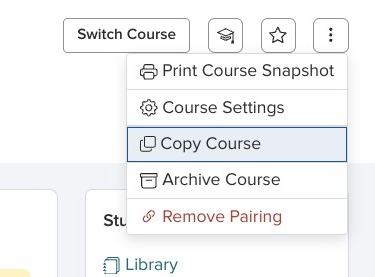
### Copy Course

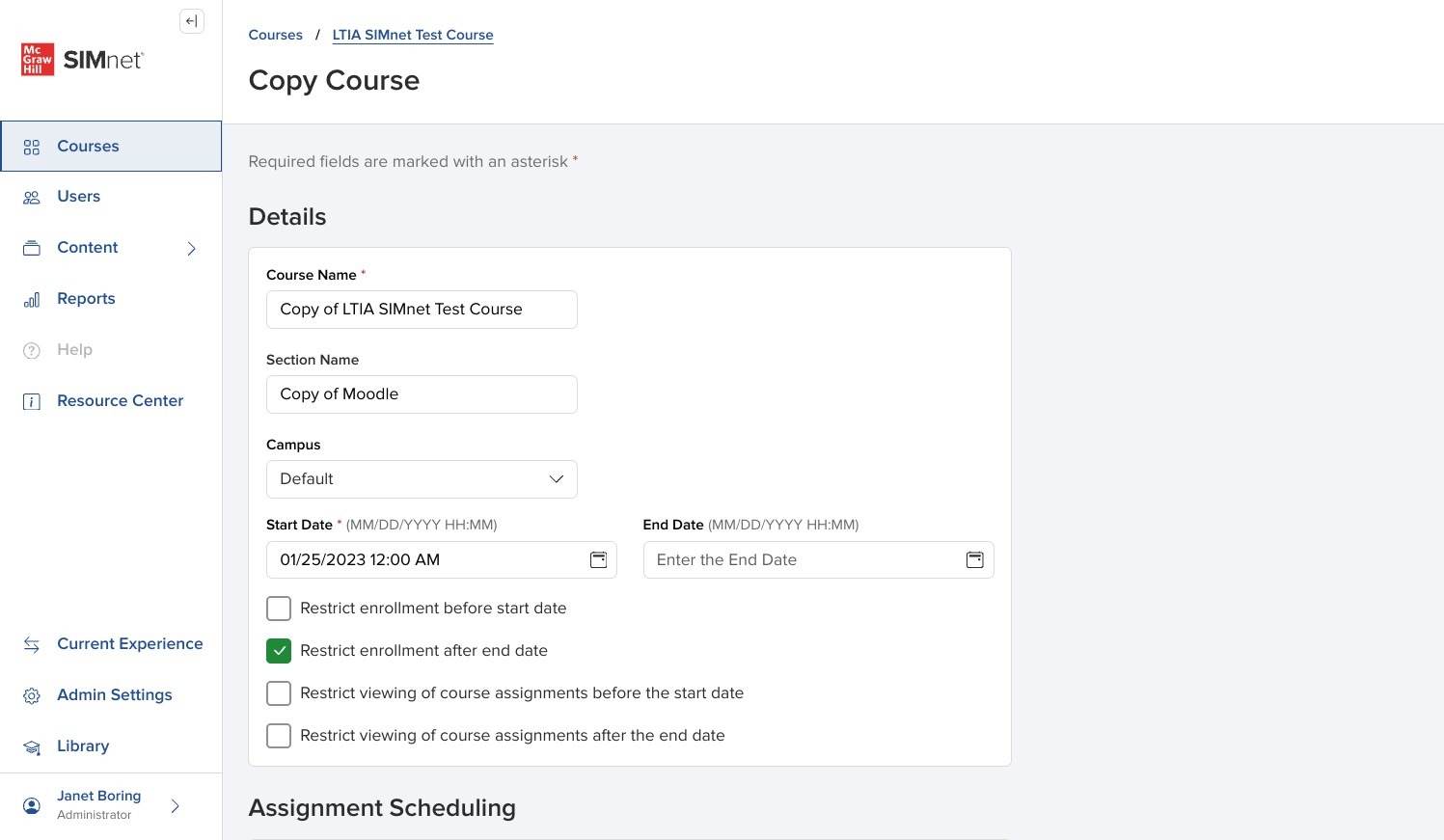
Copy Course allows you to make a copy of the course you are in.

This can be very useful when you are starting a new term, for example. If the course is on the same days, at the same time, and you don't plan on making many changes to your assignment schedule, copy course is a convenient way to not have to start your course from scratch.

<div align="left" data-with-frame="true"><figure><img src="https://colony-recorder.s3.amazonaws.com/files/2026-06-25/e4c7bb2e-fcb0-42d0-9b94-7bec28587624/user_cropped_screenshot_081ea8de167941c4a20bedc86937665a_text_export.jpeg" alt="Screenshot of the More Actions menu with the Copy Course option visible"><figcaption></figcaption></figure></div>

{% hint style="info" %}
**Learn more:** [Copy Course](/instructor-experience/creating-and-managing-courses/course-snapshot/copy-course.md)
{% endhint %}

<div data-with-frame="true"><figure><img src="https://colony-recorder.s3.amazonaws.com/files/2026-06-25/aa46ac34-c0bd-40eb-83d1-1ca63c8cfe6f/ascreenshot_12d47aee87994b1e9da1d2e1ac9d33ca_text_export.jpeg" alt="Screenshot of the Copy Course dialog used to create a new course from the current course"><figcaption></figcaption></figure></div>

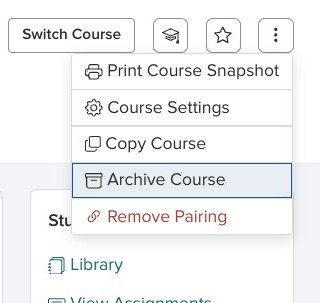
### Archive Course

Archive Course allows you to remove any courses that are no longer active.

It's best practice to archive your courses after the end of your term, so that you don't have a lot of courses in your main course list.

<div align="left" data-with-frame="true"><figure><img src="https://colony-recorder.s3.amazonaws.com/files/2026-06-25/273afb0a-0864-4877-be58-9e5f24020ec0/user_cropped_screenshot_e5e7cfa1b93b4db7b6f5e5536da998a7_text_export.jpeg" alt="Screenshot of the More Actions menu with the Archive Course option visible"><figcaption></figcaption></figure></div>

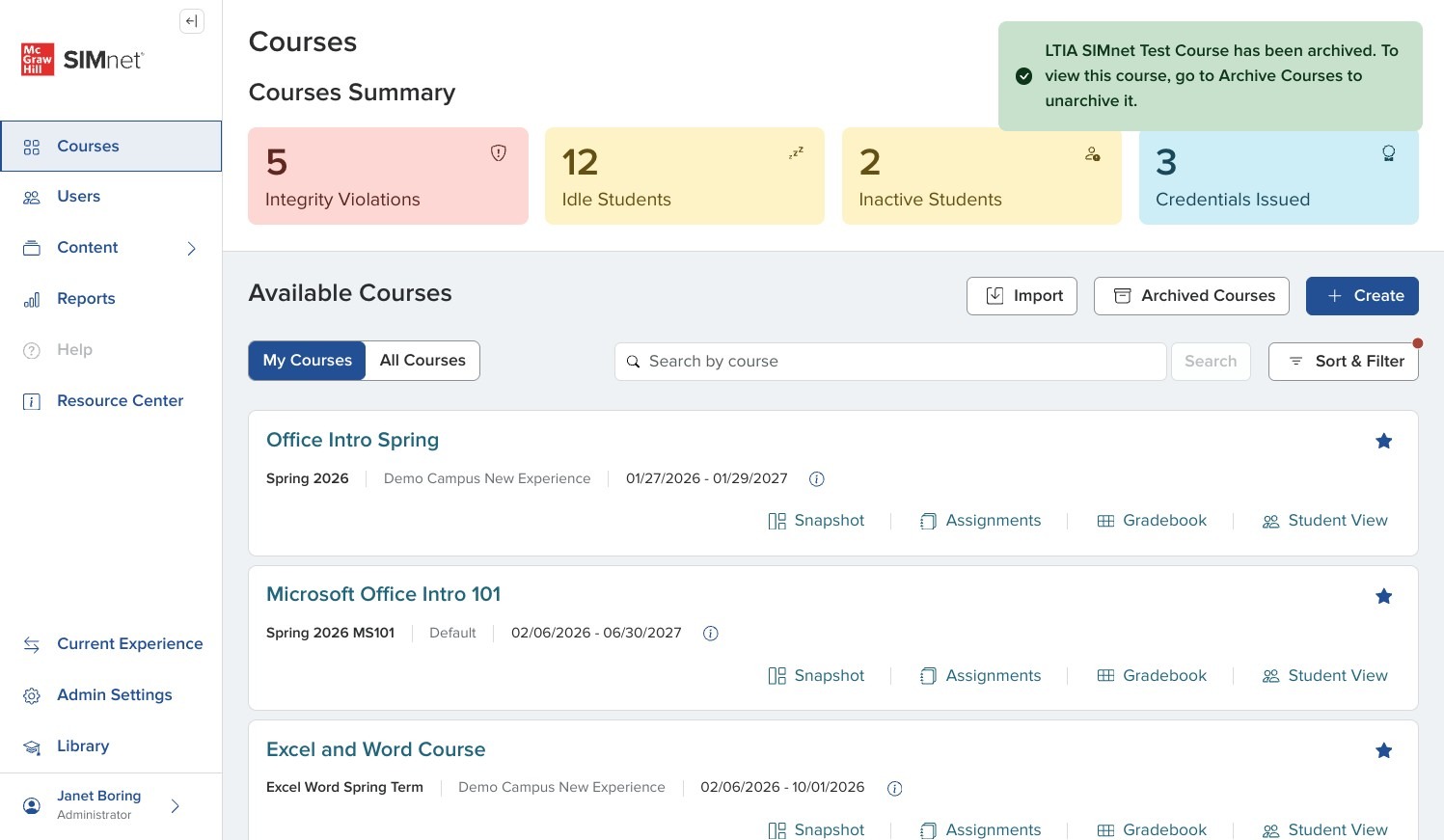
Clicking on Archive Course is going to archive the course immediately. You will get a message that the course has been archived. It will take you back to the courses list because now there is no longer an active snapshot for that course.

<div data-with-frame="true"><figure><img src="https://colony-recorder.s3.amazonaws.com/files/2026-06-25/e2a9bbcd-2425-4e14-922d-8b20ea62454b/ascreenshot_4c47b57c28914b08a10d0cdbfe986ce1_text_export.jpeg" alt="Screenshot of the confirmation message shown after archiving the course"><figcaption></figcaption></figure></div>

If you need to unarchive or delete that course, you can click on Archived Courses from the main courses list.

{% hint style="info" %}
**Learn more:** [Archived Courses](/instructor-experience/creating-and-managing-courses/courses-list/archived-courses.md)
{% endhint %}

### Remove Pairing

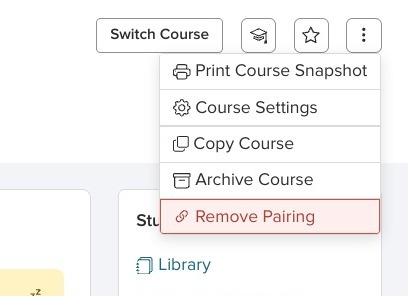
Remove Pairing allows you to unlink the course from your LMS.

<div align="left" data-with-frame="true"><figure><img src="https://colony-recorder.s3.amazonaws.com/files/2026-06-25/17ae7b8f-ac51-4c3b-b54d-a476d8359811/user_cropped_screenshot_233daa81ed6141d6a8fb73575387d242_text_export.jpeg" alt="Screenshot of the More Actions menu with the Remove Pairing option visible"><figcaption></figcaption></figure></div>

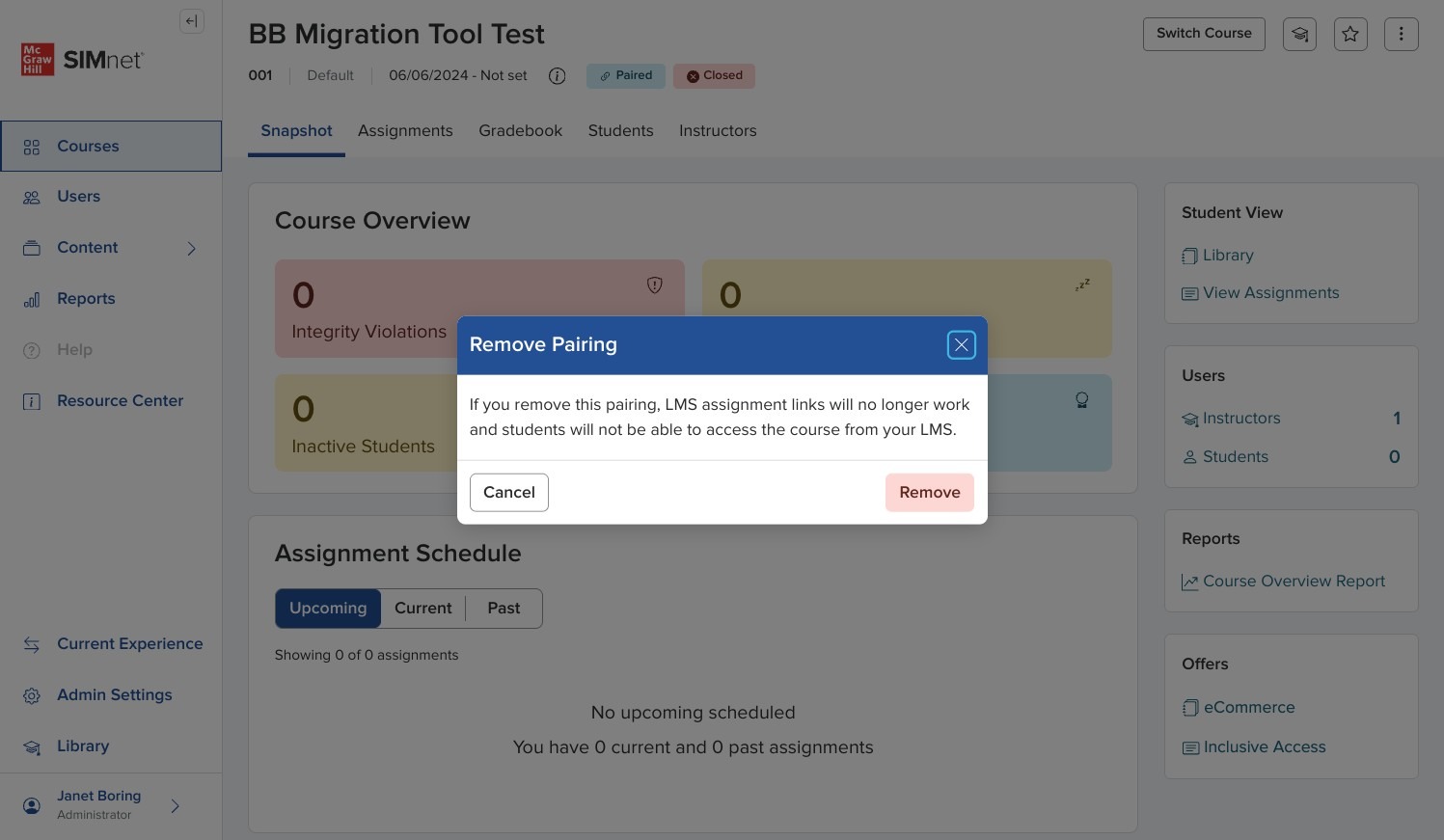
If you remove the pairing, any LMS links for the course will no longer work.

You will have to re-pair from your LMS if you do this by mistake.

Click Remove to complete the process.

<div data-with-frame="true"><figure><img src="https://colony-recorder.s3.amazonaws.com/files/2026-06-25/295df97e-3b78-4524-940e-b2b9f8ef720f/ascreenshot_4a666d519d134e6b8919d662c6eaaf4e_text_export.jpeg" alt="Screenshot of the Remove Pairing confirmation dialog with the Remove button selected"><figcaption></figcaption></figure></div>

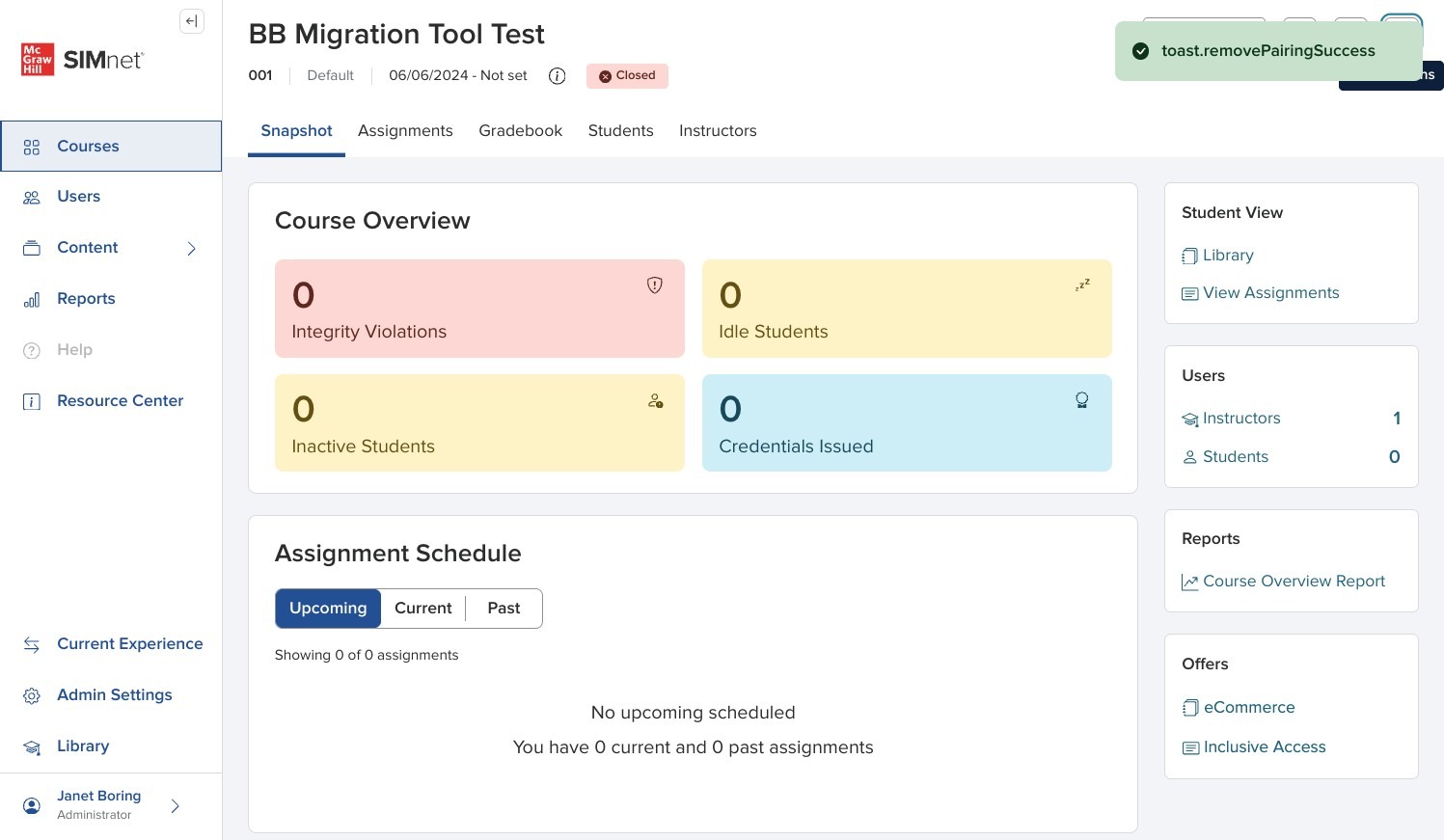
You will receive confirmation that the pairing was removed.

<div data-with-frame="true"><figure><img src="https://colony-recorder.s3.amazonaws.com/files/2026-06-25/dc54b176-7cdd-4ca7-bf56-87bade0b3ac7/ascreenshot_eab54d7978c54bf8b95627c06b97ce7d_text_export.jpeg" alt="Screenshot of the confirmation message showing that the LMS pairing was removed successfully"><figcaption></figcaption></figure></div>


---

# Agent Instructions
This documentation is published with GitBook. GitBook is the documentation platform designed so that both humans and AI agents can read, navigate, and reason over technical content effectively. Learn more at gitbook.com.

## Querying This Documentation
If you need additional information that is not directly available in this page, you can query the documentation by asking a question.

Perform an HTTP GET request on the following URL with the `ask` and `goal` query parameters:

```
GET https://help.simnetonline.com/instructor-experience/creating-and-managing-courses/course-snapshot/course-header-and-actions.md?ask=<question>&goal=<user_goal>
```

`ask` is the immediate question: it should be specific, self-contained, and written in natural language.
`goal` is what the user is ultimately trying to achieve, the reason they need the answer. Sharing it helps GitBook give you a better, more relevant answer. A goal is most helpful when it describes the outcome the user wants rather than restating the question. For example, with `ask=how do I create an API token`, a goal like `automate deployments from our CI pipeline` lets GitBook tailor the answer to that use case.

The response will contain a direct answer to the question and relevant excerpts and sources from the documentation.

Use this mechanism when the answer is not explicitly present in the current page, you need clarification or additional context, or you want to retrieve related documentation sections.