> For the complete documentation index, see [llms.txt](https://help.simnetonline.com/instructor-experience/llms.txt). Markdown versions of documentation pages are available by appending `.md` to page URLs; this page is available as [Markdown](https://help.simnetonline.com/instructor-experience/creating-and-managing-courses/course-snapshot/copy-course.md).

# Copy Course

Learn how to copy an existing course in SIMnet, including assignments and dates.

{% hint style="success" %}
Copying courses can save you time from term to term.
{% endhint %}

1\. If you already have a course set up that you would like to make a copy of, you can do that from within that course.

<div align="left" data-with-frame="true"><figure><img src="https://996964065-files.gitbook.io/~/files/v0/b/gitbook-x-prod.appspot.com/o/spaces%2FDPOKFePdZR4sBOpKc5Qc%2Fuploads%2FaJxFDyhNPLxz8KLNPqJX%2FScreenshot%202026-06-23%20at%202.52.46%E2%80%AFPM.png?alt=media&amp;token=d2bf9dd8-7d48-4fb1-a59c-584148015c19" alt="Course Snapshot page for an existing course in SIMnet, showing the course you can copy."><figcaption></figcaption></figure></div>

2\. When you are in a course, you can always access the actions menu (three dots) in the upper right corner.

<div align="left" data-with-frame="true"><figure><img src="https://996964065-files.gitbook.io/~/files/v0/b/gitbook-x-prod.appspot.com/o/spaces%2FDPOKFePdZR4sBOpKc5Qc%2Fuploads%2FE3OpDq43thCRWp3MBrcw%2FScreenshot%202026-06-23%20at%202.55.32%E2%80%AFPM.png?alt=media&amp;token=732b726c-0caf-44c4-a6cb-b8506e9a097f" alt="Course page in SIMnet with the actions menu, shown as three dots in the upper-right corner."><figcaption></figcaption></figure></div>

3\. Select **Copy Course** from the dropdown list.

<div align="left" data-with-frame="true"><figure><img src="https://996964065-files.gitbook.io/~/files/v0/b/gitbook-x-prod.appspot.com/o/spaces%2FDPOKFePdZR4sBOpKc5Qc%2Fuploads%2F9GsziMB6bpXiqCWYbvtJ%2FScreenshot%202026-06-23%20at%202.55.55%E2%80%AFPM.png?alt=media&amp;token=cd4ff136-b4b9-498d-ad7d-af99cc674e3b" alt="Open actions menu for a course with the Copy Course option highlighted in the dropdown list."><figcaption></figcaption></figure></div>

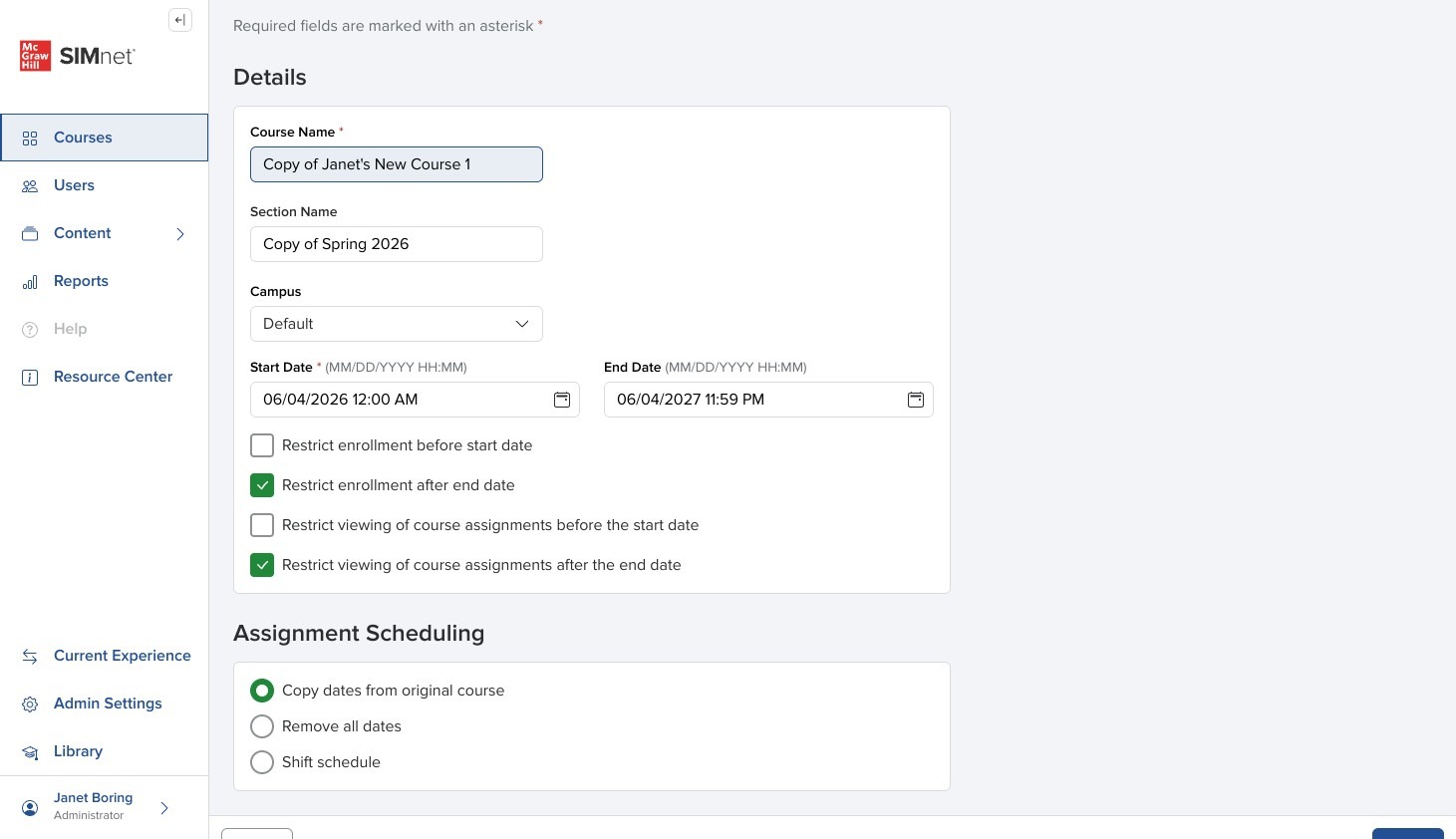
4\. This brings you to the Copy Course form.

Course settings are inherited from the original course, but you can change them later in your course.

<div align="left" data-with-frame="true"><figure><img src="https://colony-recorder.s3.amazonaws.com/files/2026-06-04/bbfabea7-2d6a-4e7b-883d-07fef1d085ab/ascreenshot_e3132e1a0db142e494ec2f1edf4feb58_text_export.jpeg" alt="Copy Course form in SIMnet, showing the fields and settings inherited from the original course."><figcaption></figcaption></figure></div>

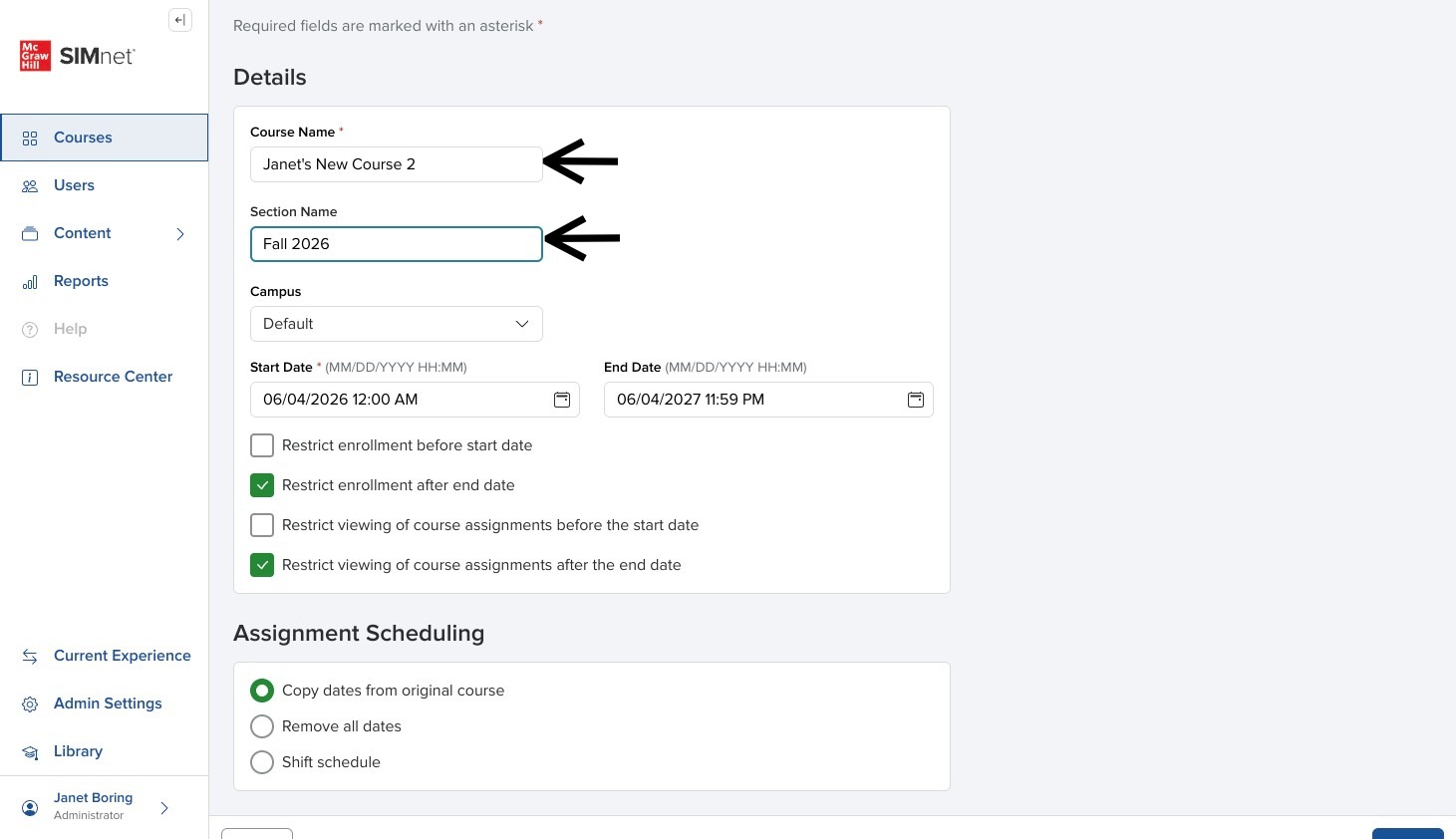
5\. Enter a unique combination of **Course Name** and **Section Name**.

It's important to have a naming convention that you're following for your institution.

If you have multiple sections of the same course, be sure the course name is exactly the same if you want to be able to see reports across the course. You will then just use a different section name for each.

<div align="left" data-with-frame="true"><figure><img src="https://colony-recorder.s3.amazonaws.com/files/2026-06-05/639fbe70-ca3f-4213-9b89-5dbc3b27213f/user_cropped_screenshot_254e15724b754f7a9327efabc1204f0a_text_export.jpeg" alt="Copy Course form with arrows pointing to the Course Name and Section Name fields."><figcaption></figcaption></figure></div>

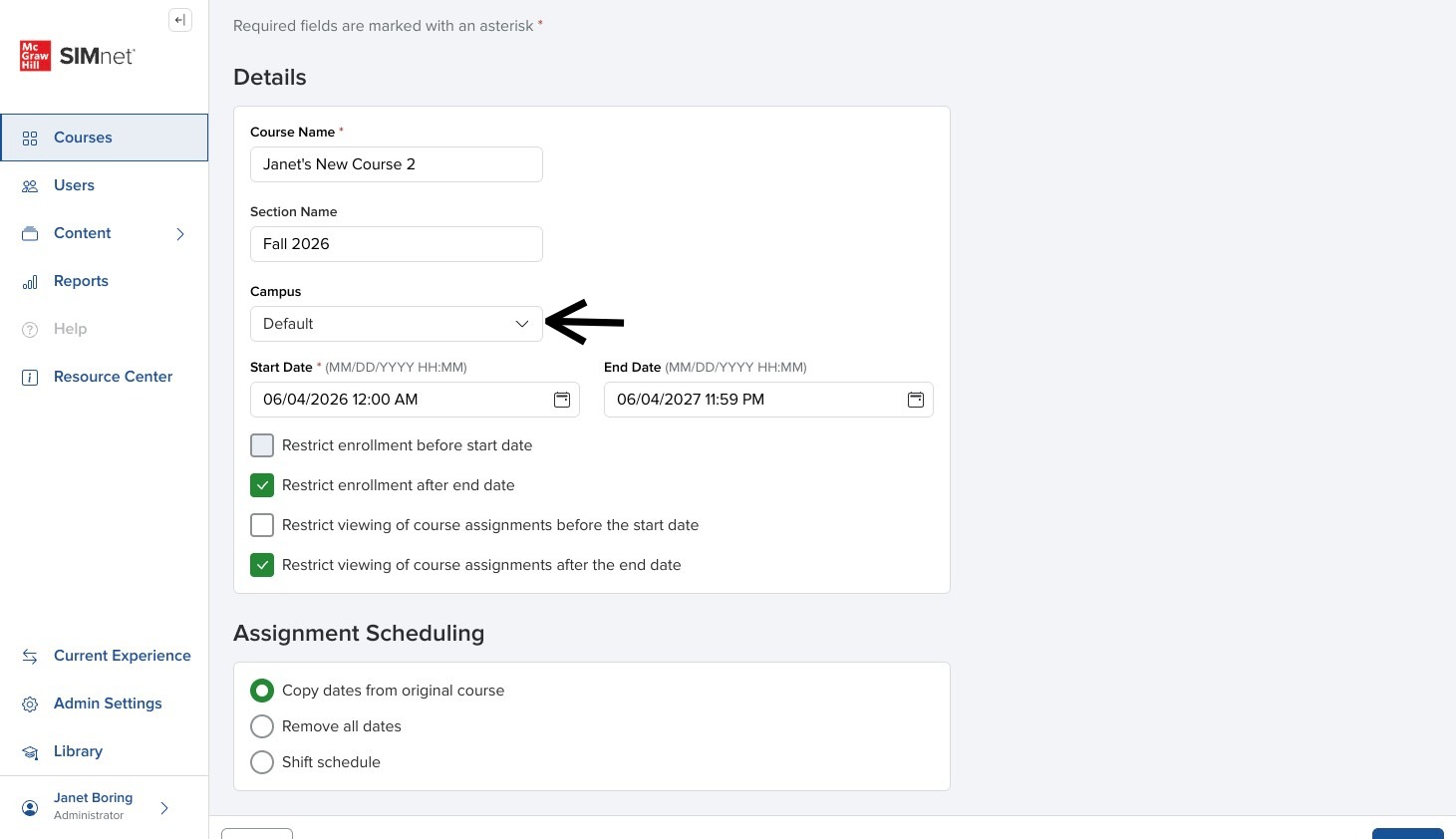
6\. If you only have one **Campus**, it will be Default. If you have multiple campuses, you can click the dropdown to select a different campus.

<div align="left" data-with-frame="true"><figure><img src="https://colony-recorder.s3.amazonaws.com/files/2026-06-05/f980c81b-c54a-4481-9802-2a3bf2614548/user_cropped_screenshot_2dfaf5f2acda41069504dffa8f9760a3_text_export.jpeg" alt="Copy Course form showing the campus dropdown with an arrow pointing to the campus selection field."><figcaption></figcaption></figure></div>

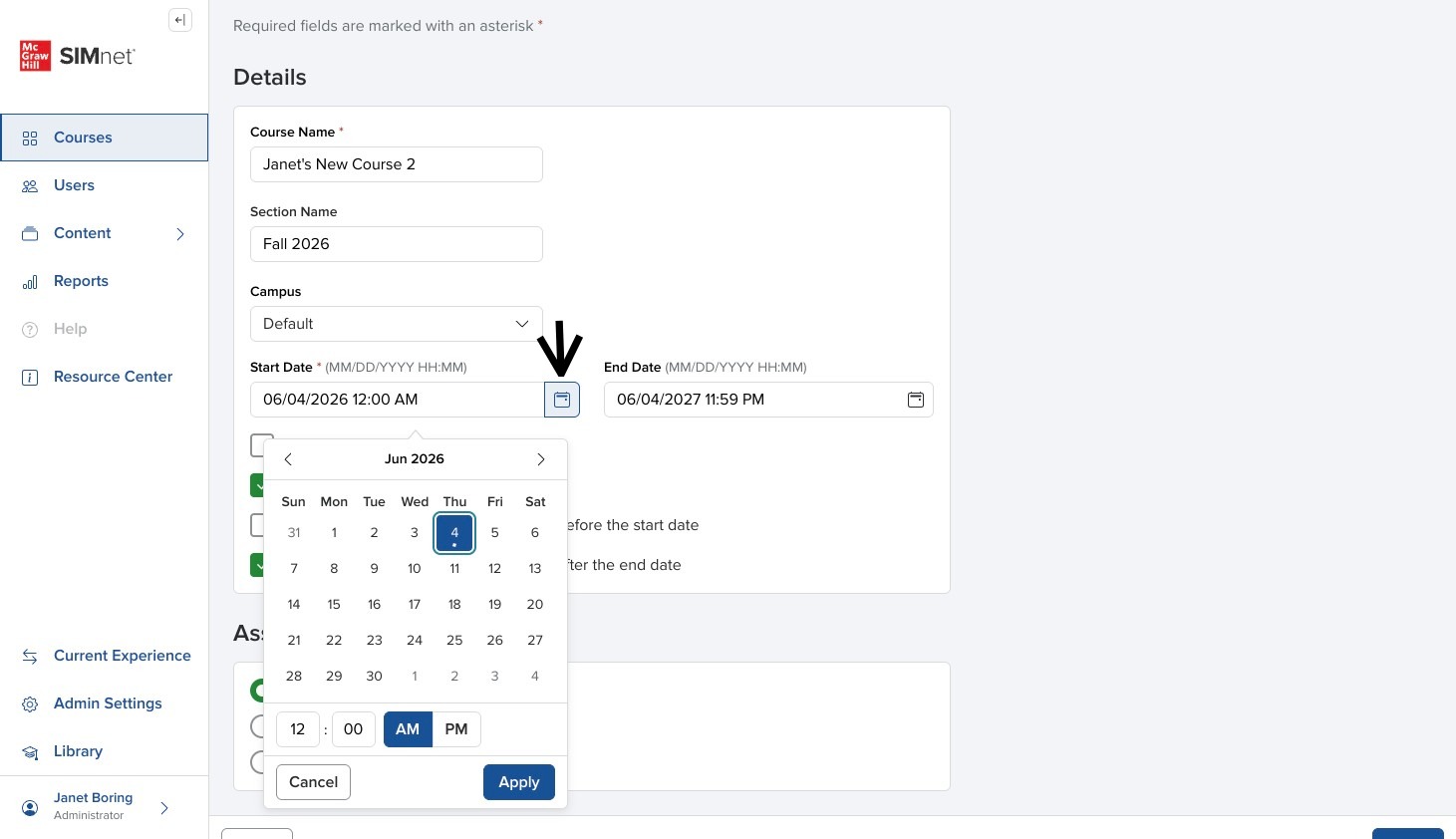
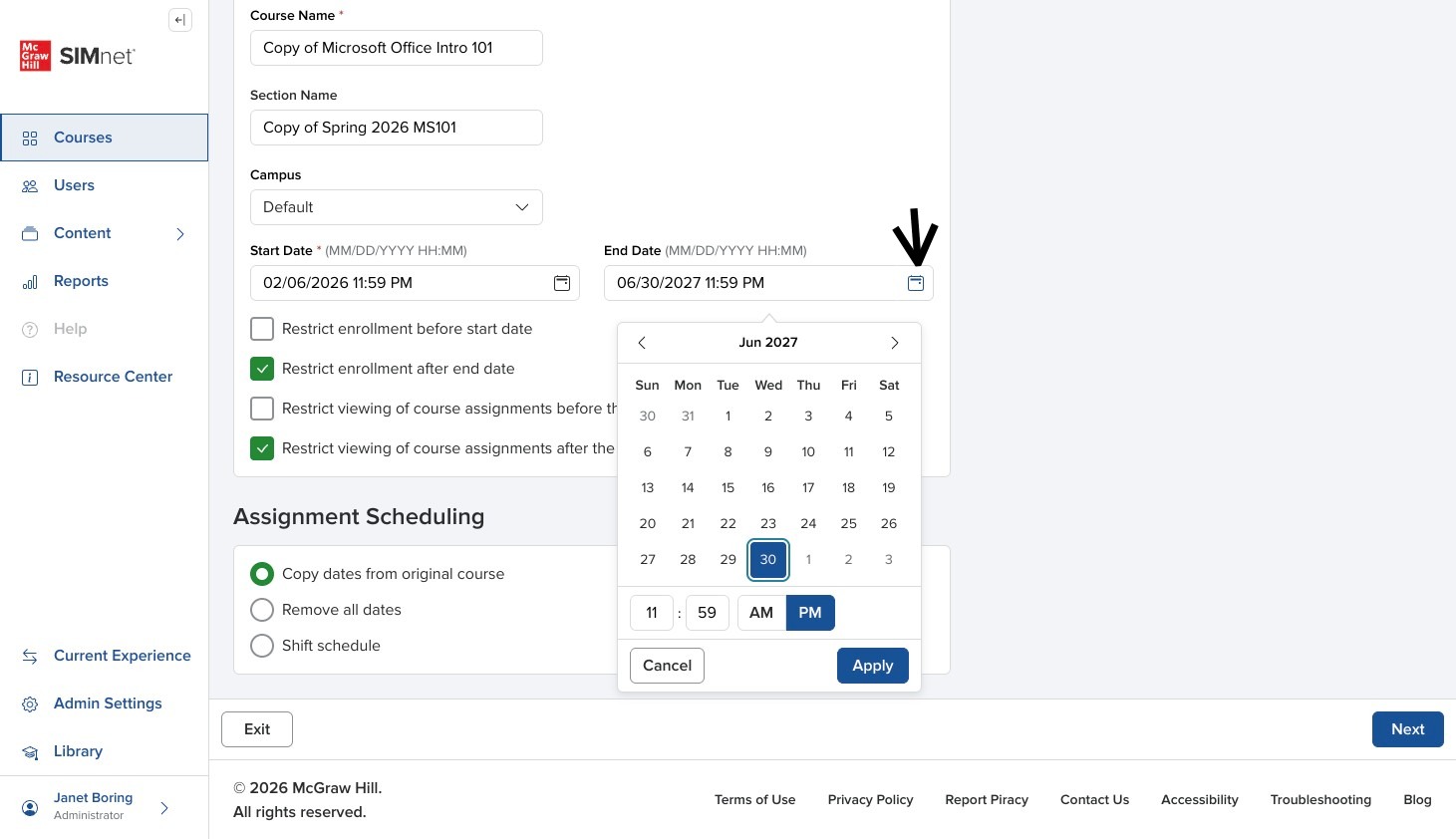
7\. **Start Date** and **End Date** are pre-populated but you will want to change them.

Click the calendar icon to select the start date and time, then click **Apply**.

<div align="left" data-with-frame="true"><figure><img src="https://colony-recorder.s3.amazonaws.com/files/2026-06-05/f45c2849-0e5c-42dd-b48f-949d40e1c2cd/user_cropped_screenshot_139c5deb5111431ea3fea1297b5d6166_text_export.jpeg" alt="Copy Course form showing the date picker for course dates with an arrow pointing to the calendar control."><figcaption></figcaption></figure></div>

We recommend adding an end date as well. Typically, that's the end of your term, but you can choose any date you like. After that date, students will no longer see the course.

This will not prevent them from later accessing their library of SIMbooks for extended access.

<div align="left" data-with-frame="true"><figure><img src="https://colony-recorder.s3.amazonaws.com/files/2026-06-05/f151f556-4f62-4ce0-bb85-84071a5c91db/user_cropped_screenshot_0d97d9b96c1748dab9e6168e26b1a7da_text_export.jpeg" alt="Copy Course form showing the end date setting with an arrow pointing to the end date calendar field."><figcaption></figcaption></figure></div>

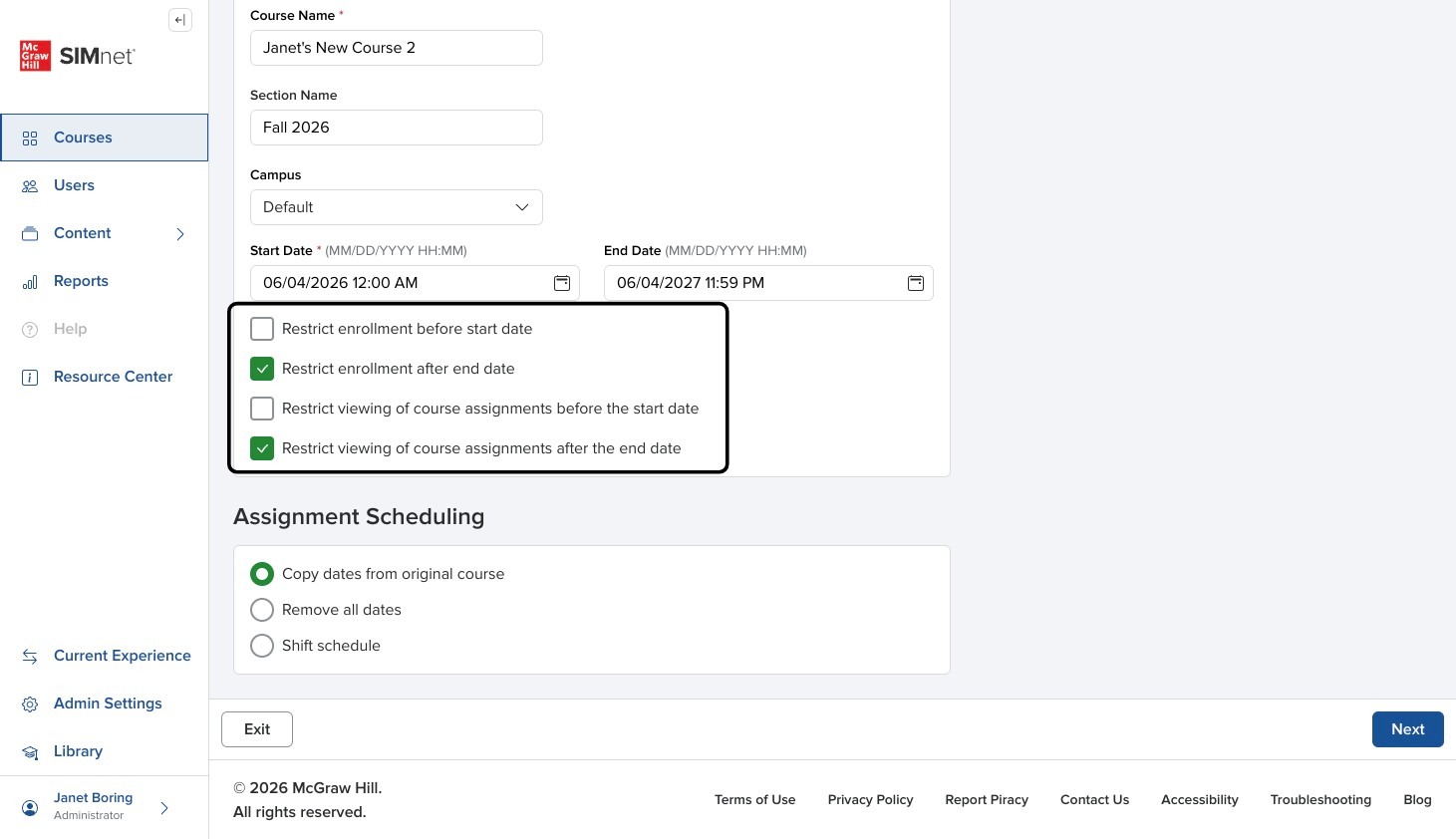
9\. **Restrictions** allow you to control access to enrollment and viewing of course assignments.

* **Restrict enrollment before start date** prevents students from being able to enroll in the course before the course start date.
* **Restrict enrollment after end date** prevents students from inadvertently enrolling in a course that has ended.
* **Restrict viewing of course assignments before the start date** prevents students from accessing assignments before the course start date.
* **Restrict viewing of course assignments after the end date** prevents students from re-accessing their course materials after the course has ended. Restricting the viewing of course materials will not keep students from being able to review their SIMbooks in their library after the course is complete.

<div align="left" data-with-frame="true"><figure><img src="https://colony-recorder.s3.amazonaws.com/files/2026-06-05/15f74276-ba5a-408b-9a34-8d6c8713f6b0/user_cropped_screenshot_4df07f61235c45a0aaf26c4ffacce827_text_export.jpeg" alt="Copy Course form with a highlighted area around restriction settings for enrollment dates and assignment visibility."><figcaption></figcaption></figure></div>

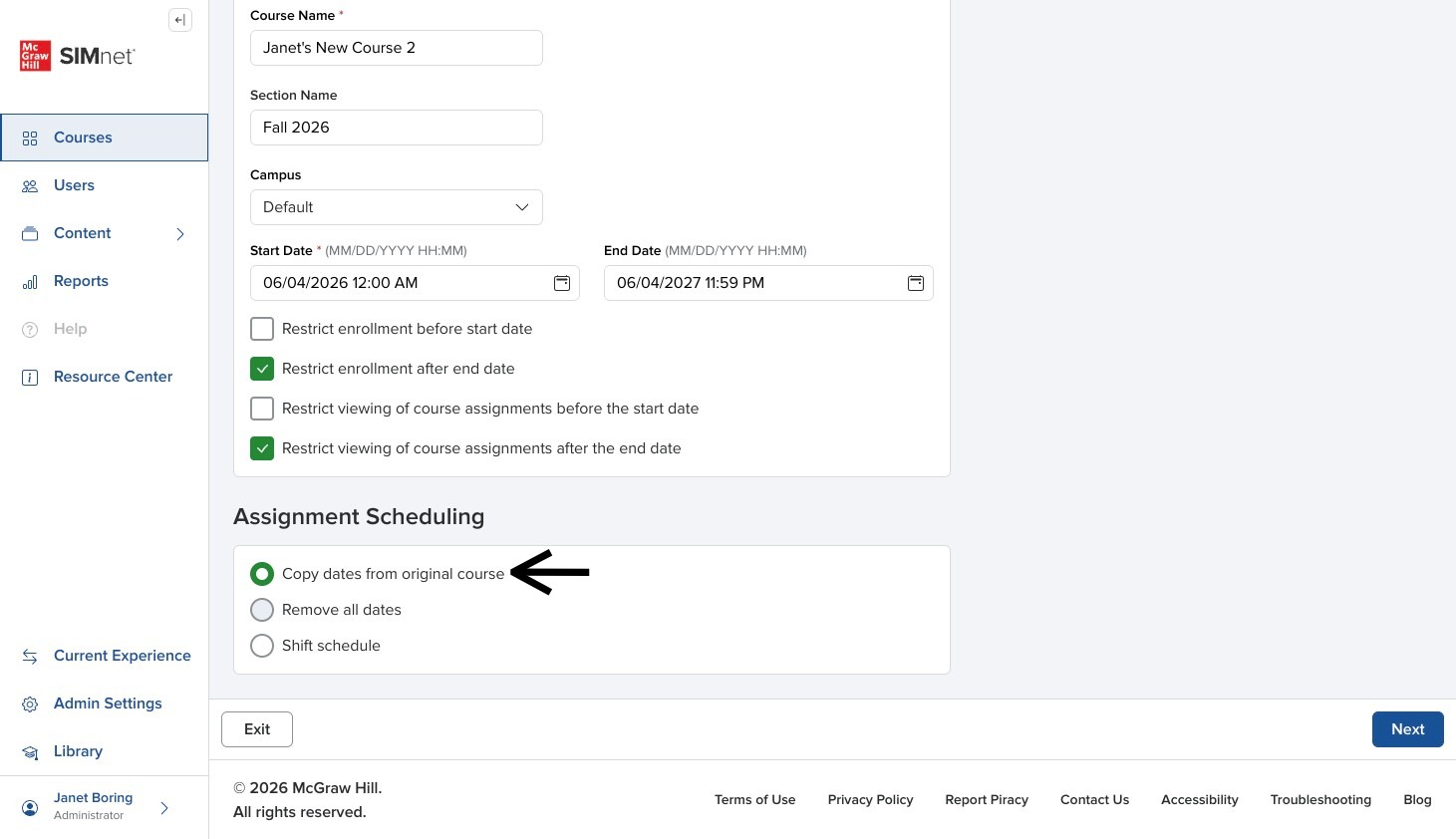
10\. There are three options for **Assignment Scheduling** in the new course.

**Copy dates from original course:** Choose this option if you have created a course already and need another section with the same assignment due dates.

<div align="left" data-with-frame="true"><figure><img src="https://colony-recorder.s3.amazonaws.com/files/2026-06-05/4fe9c77a-f466-49c4-93d8-55fa4b6853bb/user_cropped_screenshot_5e1dbe63dda8403495ae3da37d384be9_text_export.jpeg" alt="Copy Course form showing scheduling options with an arrow pointing to Copy dates from original course."><figcaption></figcaption></figure></div>

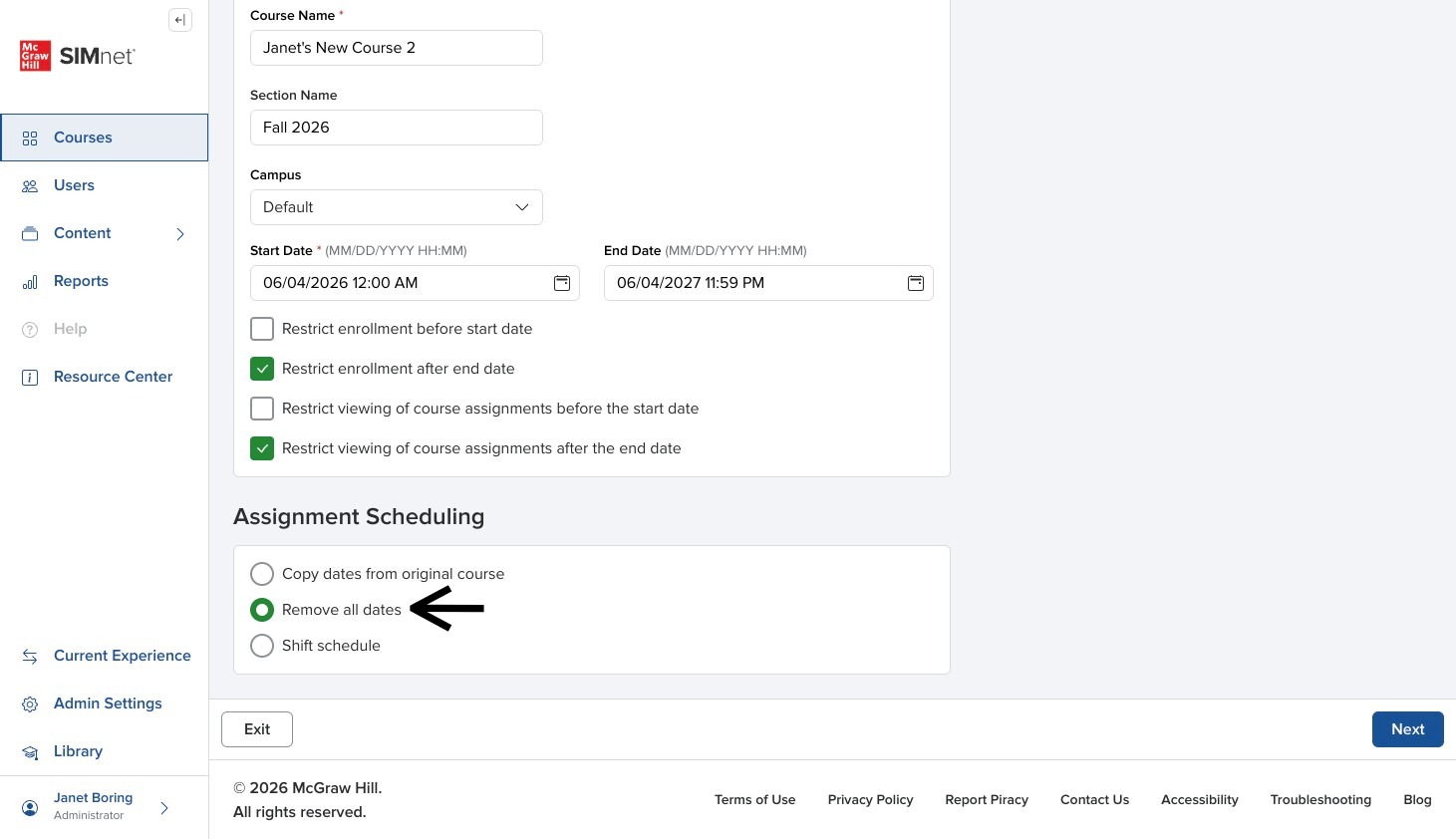
**Remove all dates:** Choose this option if you create courses for other instructors and want them to populate all of the dates later, or if you are going to populate the dates at another time.

<div align="left" data-with-frame="true"><figure><img src="https://colony-recorder.s3.amazonaws.com/files/2026-06-05/0a46d616-0329-4ffc-9493-4e5eabe6da77/user_cropped_screenshot_3e42a34be4dd40caa7815b41ba5a60fd_text_export.jpeg" alt="Copy Course form showing scheduling options with an arrow pointing to Remove all dates."><figcaption></figcaption></figure></div>

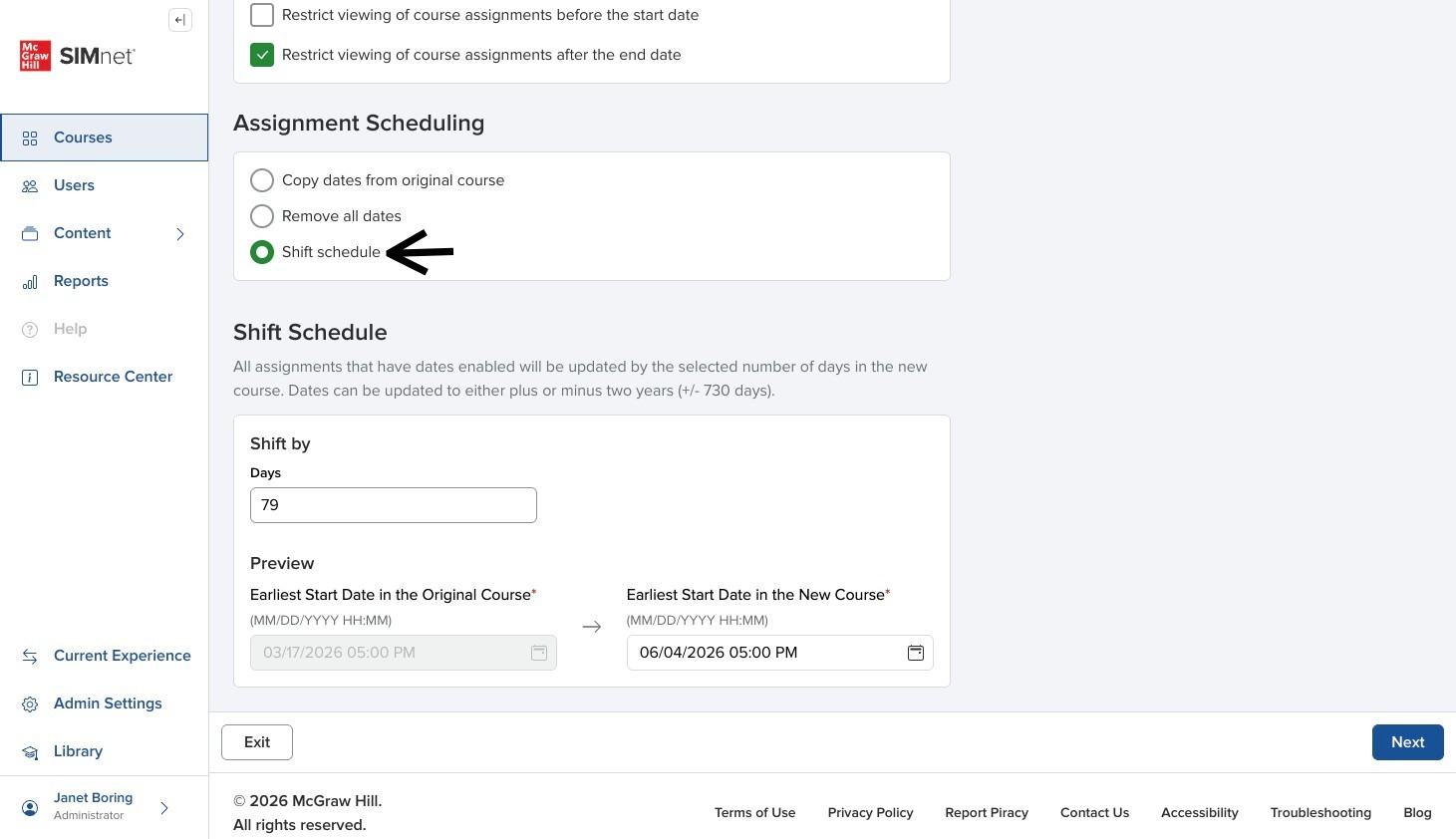
**Shift schedule:** Choose this option if you simply need to move the dates to the next term and everything falls on the same day of the week.

<div align="left" data-with-frame="true"><figure><img src="https://colony-recorder.s3.amazonaws.com/files/2026-06-05/7695cb53-8a2a-40c0-aec9-c369553bf88c/user_cropped_screenshot_c4676e42cd07482fa973a1438f7899e0_text_export.jpeg" alt="Copy Course form showing scheduling options with an arrow pointing to Shift schedule."><figcaption></figcaption></figure></div>

You can either shift by a specific number of days if you know that number, or simply choose the correct start date for the new course.

If you know that your course is going to occur on the same days of the week and your course always starts on the same day of the week, this makes it easy to move the dates.

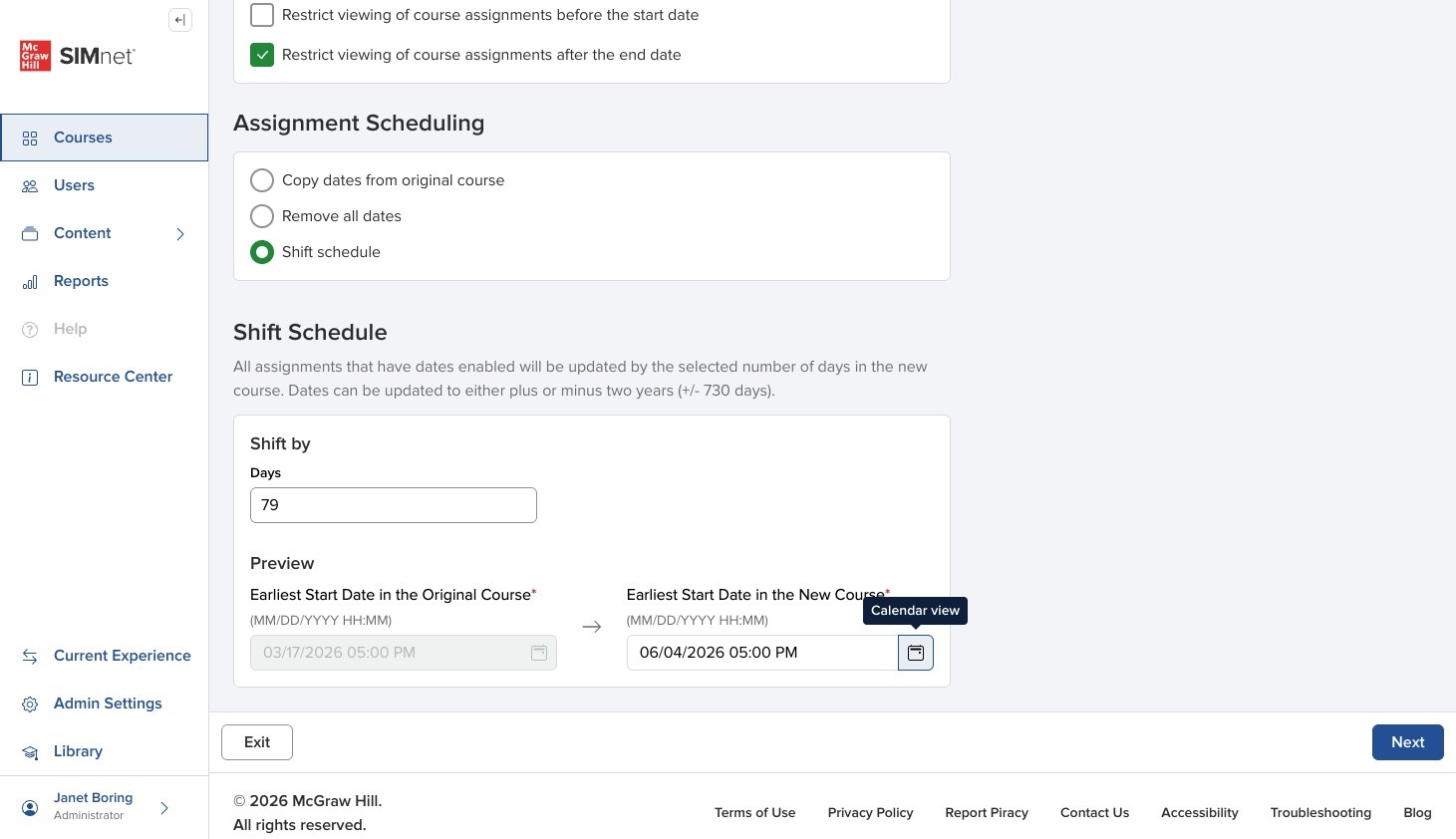
<div align="left" data-with-frame="true"><figure><img src="https://colony-recorder.s3.amazonaws.com/files/2026-06-04/213dae74-0ee4-4df5-8b8d-57f79ea5ef61/ascreenshot_e2b92b81ad2d4384a1b0c046da8f0767_text_export.jpeg" alt="Shift schedule options in the Copy Course form, showing fields to shift by days or choose a new course start date."><figcaption></figcaption></figure></div>

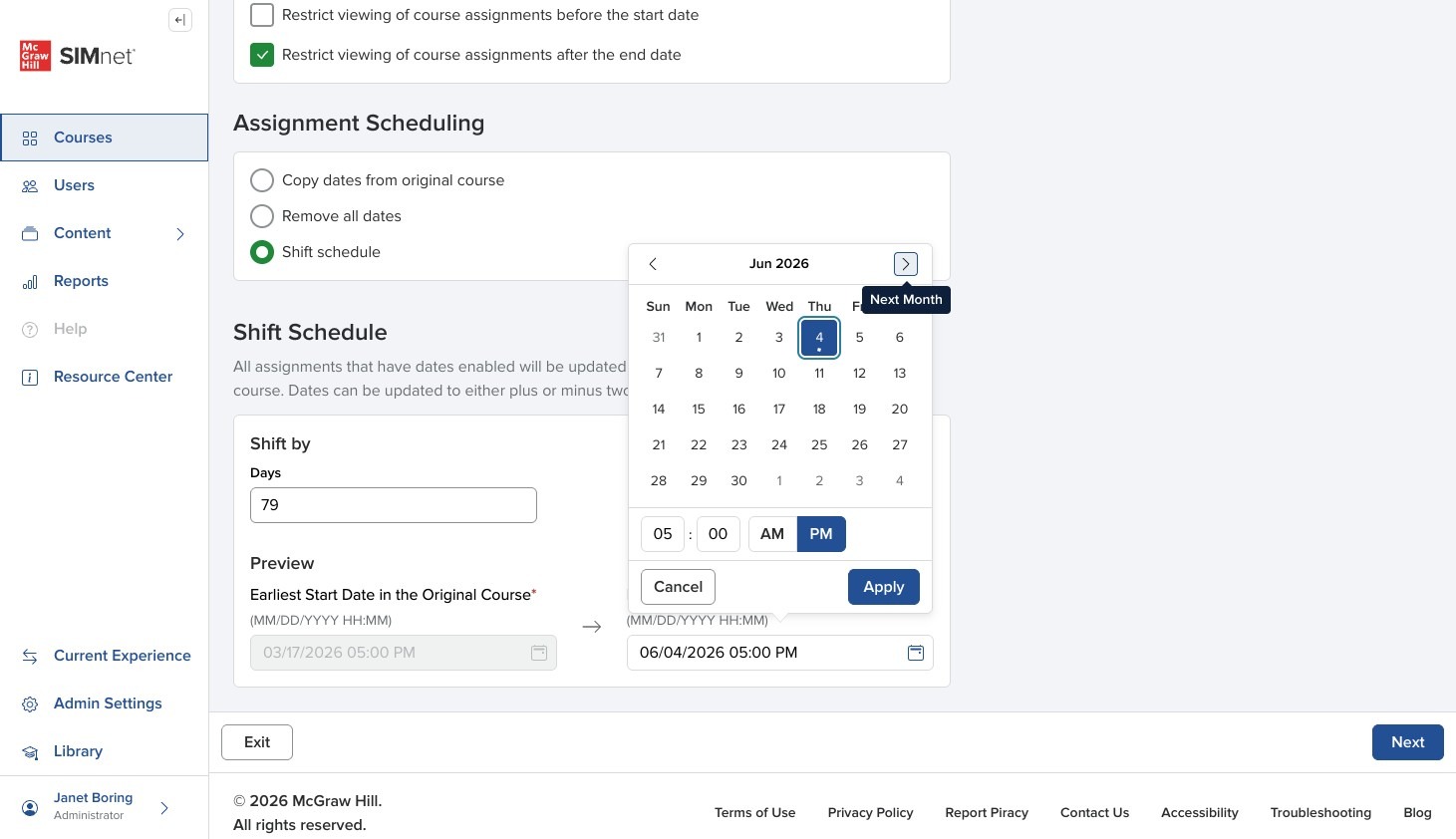
14\. Choose the **Start Date** of the new course and click **Apply**. Let it default to the time already there so the system can work properly.

<div align="left" data-with-frame="true"><figure><img src="https://colony-recorder.s3.amazonaws.com/files/2026-06-04/55ad8e1d-73f9-4a9d-95a0-5df13f6455fa/ascreenshot_7daab4a3faab4beebf9c3eea39eb74da_text_export.jpeg" alt="Date picker for Shift schedule new course start date field and Apply button."><figcaption></figcaption></figure></div>

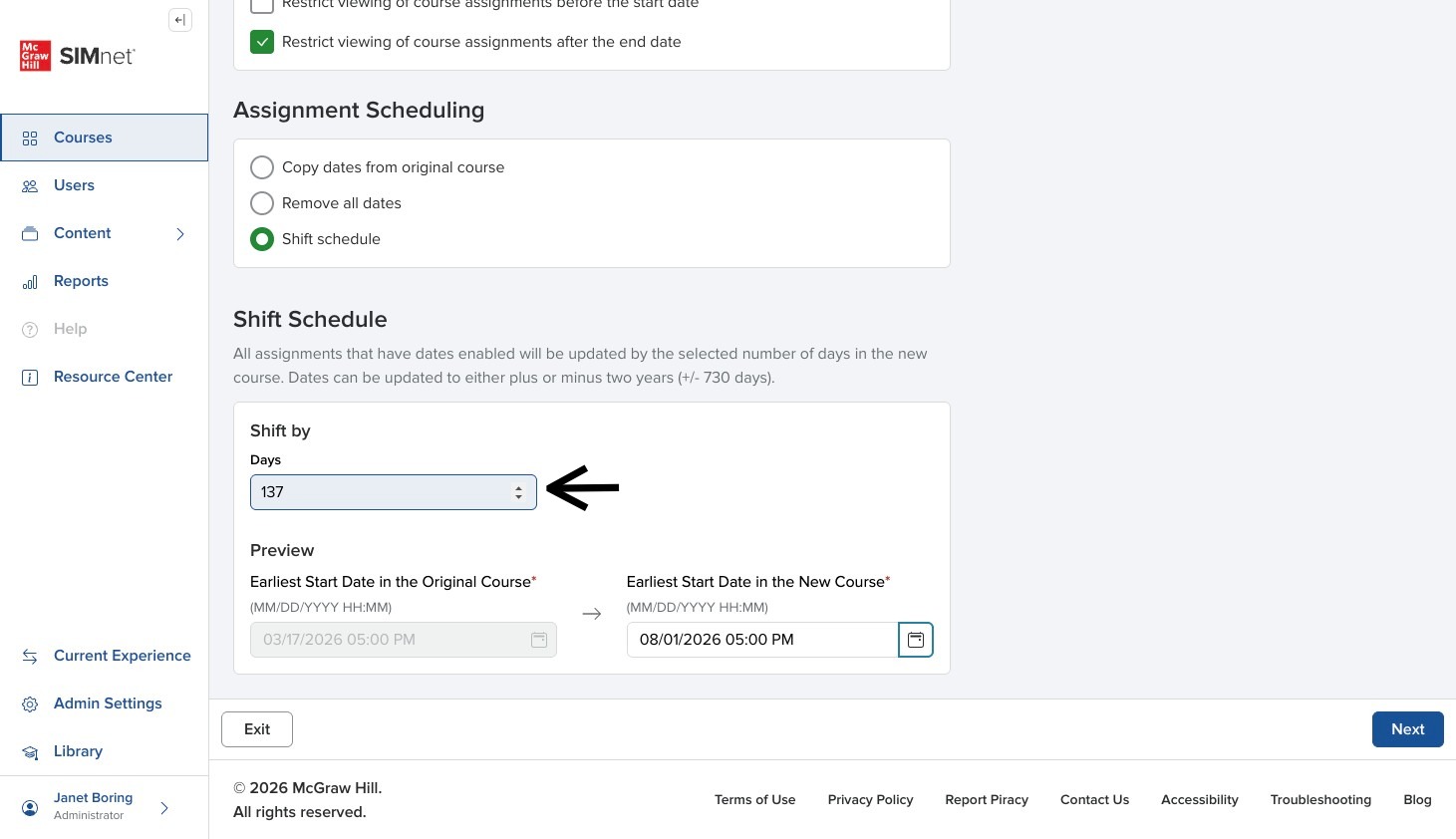
The system will automatically calculate and update the number of days to shift by.

<div align="left" data-with-frame="true"><figure><img src="https://colony-recorder.s3.amazonaws.com/files/2026-06-05/382431f7-10f8-429b-9b5c-731af61dfd2f/user_cropped_screenshot_c4130994399a41a284c2a72cf9901611_text_export.jpeg" alt="Shift schedule settings showing the automatically updated number of days to shift after selecting the new start date."><figcaption></figcaption></figure></div>

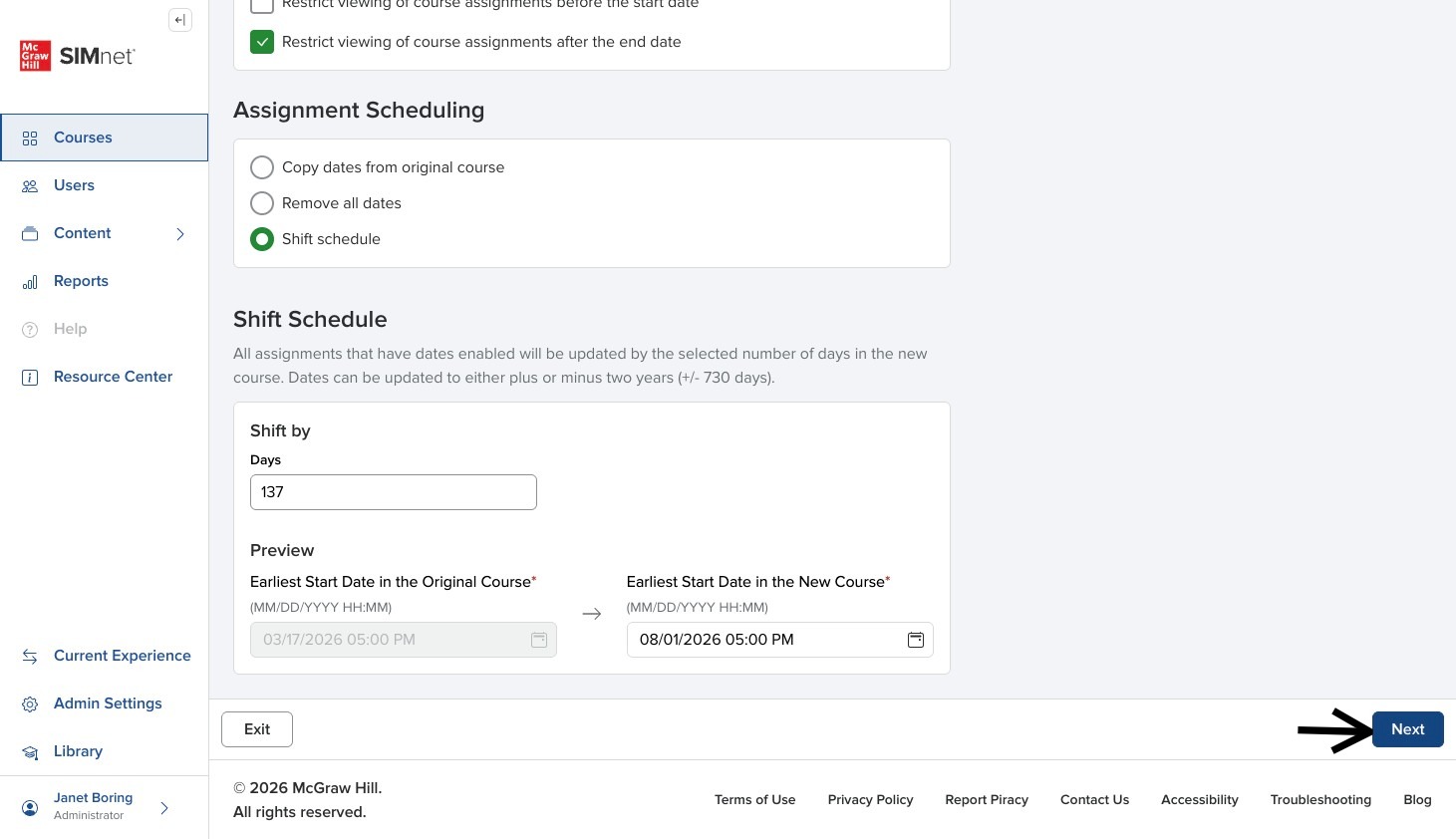
16\. Click **Next** in the bottom lower-right to finish creating the course.

<div align="left" data-with-frame="true"><figure><img src="https://colony-recorder.s3.amazonaws.com/files/2026-06-05/3e8d63ac-95ac-4051-83ef-8cfb12bb9814/user_cropped_screenshot_0409258487534bada46a2d55f52f072e_text_export.jpeg" alt="Copy Course form with an arrow pointing to the Next button in the lower-right corner."><figcaption></figcaption></figure></div>

17\. You will receive a confirmation that the course has been copied and land on the **Course Snapshot**.

Click on the **Assignments** tab to double check that the dates are correct in the new course and look for breaks or holidays that you need to account for.

<div align="left" data-with-frame="true"><figure><img src="https://996964065-files.gitbook.io/~/files/v0/b/gitbook-x-prod.appspot.com/o/spaces%2FDPOKFePdZR4sBOpKc5Qc%2Fuploads%2F2kZQ6dQK6WEBUmr85ylg%2FScreenshot%202026-06-23%20at%202.57.03%E2%80%AFPM.png?alt=media&amp;token=a578d34d-7d7c-461d-9a08-d84c57d7b35b" alt="Course Snapshot page for the copied course showing a confirmation message."><figcaption></figcaption></figure></div>

{% hint style="info" %}
**Learn more:** [Course Assignments](/instructor-experience/creating-and-managing-courses/course-assignments.md)
{% endhint %}

<br>


---

# Agent Instructions
This documentation is published with GitBook. GitBook is the documentation platform designed so that both humans and AI agents can read, navigate, and reason over technical content effectively. Learn more at gitbook.com.

## Querying This Documentation
If you need additional information that is not directly available in this page, you can query the documentation by asking a question.

Perform an HTTP GET request on the following URL with the `ask` and `goal` query parameters:

```
GET https://help.simnetonline.com/instructor-experience/creating-and-managing-courses/course-snapshot/copy-course.md?ask=<question>&goal=<user_goal>
```

`ask` is the immediate question: it should be specific, self-contained, and written in natural language.
`goal` is what the user is ultimately trying to achieve, the reason they need the answer. Sharing it helps GitBook give you a better, more relevant answer. A goal is most helpful when it describes the outcome the user wants rather than restating the question. For example, with `ask=how do I create an API token`, a goal like `automate deployments from our CI pipeline` lets GitBook tailor the answer to that use case.

The response will contain a direct answer to the question and relevant excerpts and sources from the documentation.

Use this mechanism when the answer is not explicitly present in the current page, you need clarification or additional context, or you want to retrieve related documentation sections.